Create YouTube Analytics Reports in Data Studio
▼ Summary
– YouTube’s native analytics are robust but require account access, making data sharing difficult for reporting or external stakeholders.
– Google Data Studio can import YouTube data to create customizable, shareable reports without requiring direct backend login access.
– Users can build a report using a pre-made YouTube Analytics template or start from scratch, though the template contains metric errors that need manual correction.
– To access a YouTube channel you do not own in Data Studio, you must be granted Manager permissions and connect it using the Channel ID.
– Data Studio reports allow for scheduling automated updates and PDF exports, centralizing data for easier analysis and client reporting.
Producing video content requires significant investment, making performance analysis essential for any strategy. While YouTube Studio provides detailed native analytics, its data is often inaccessible for streamlined reporting, especially when sharing insights with clients or stakeholders who lack direct account access. Google Data Studio solves this by transforming that siloed information into customizable, shareable dashboards. This platform enables you to integrate YouTube metrics into existing reports, automate updates, and track key performance indicators without needing backend login credentials, centralizing your data for clearer analysis.
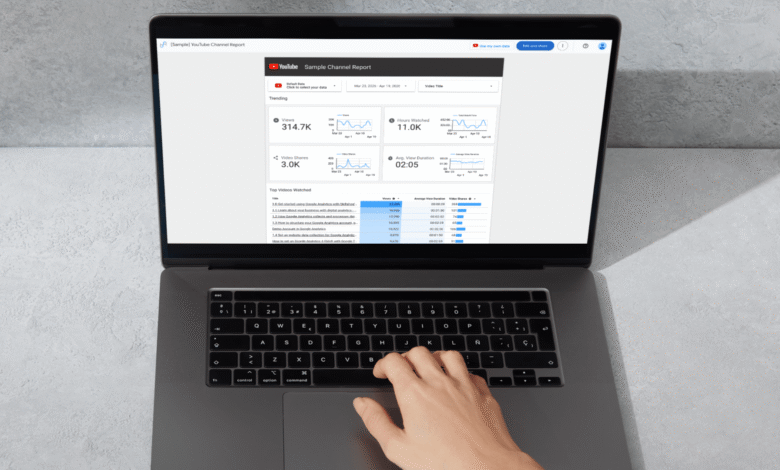
You have two primary paths for building a report: using a pre-built template or starting from a blank canvas. For a quick launch, Google’s YouTube Analytics template in the template gallery offers a well-designed starting point with core metrics. However, this template contains specific errors that require correction, a point detailed later. Building a report from scratch is ideal if you aim to add a YouTube module to an existing dashboard or wish to learn the platform’s functionality more deeply.
A common hurdle arises if you are not the YouTube account owner, such as when reporting for a client. To grant access, the channel owner must navigate to YouTube Studio settings > Permissions and assign Manager rights to the Google Account email you use in Data Studio. You then need the Channel ID from the channel’s URL. When adding the YouTube connector in Data Studio, select the Advanced option and paste this ID to establish the connection.
To utilize the official template, begin from the Data Studio home page by selecting Templates and then the Template Gallery. Under the YouTube Analytics category, choosing the template generates a new report populated with sample data. Click “Use my own data” and authorize access with the Google Account linked to your YouTube channel. You must then enter Edit mode to add your specific data source. Click Add Data and search for the YouTube Analytics connector. If your Google Account owns the channel, it will appear under the My Channel tab.
Once connected, you can assign this new data source to all charts on the page. Select any chart, right-click, and choose “Charts with this data source on page” from the Select menu. Then, pick your correct YouTube channel from the Properties sidebar. This bulk update efficiently syncs the entire dashboard.
Crucially, the provided template has longstanding metric errors that you must manually fix. The charts for Likes, Subscriptions, and Dislikes use incorrect data fields. Update them by selecting each chart and changing the metric in the Properties panel: set Likes to “Video Likes Added,” Subscriptions to “User Subscriptions Added,” and Dislikes to “Video Dislikes Added.” The Comments section charts are accurate and require no adjustment. After these corrections, your report is functional.
To incorporate this template into an existing report, Data Studio does not allow direct template imports, but you can copy pages. After creating the template report, enter Edit mode, select all elements, and copy them. In your destination report, create a new blank page and paste the copied content. The charts will initially be broken, but you can repair them all at once using the right-click method described earlier to reassign the correct data source.
While the template covers fundamentals, customizing your report unlocks deeper insights. Be aware that Data Studio cannot pull certain backend metrics available in YouTube Studio, such as revenue data, detailed viewer demographics, or retention graphs. Despite these limitations, a wealth of useful data remains accessible. To add more charts, first create space by adjusting the canvas size. Navigate to Page > Current page settings, and in the Style tab, increase the canvas height to, for instance, 3000 pixels. This provides ample room to incorporate additional graphs, scorecards, and tables.
You can plot multiple metrics on a single graph for comparative analysis and rename headers for clarity. The connector offers a broad array of dimensions and metrics, allowing you to track everything from view counts and engagement rates to traffic sources and subscriber growth, tailoring the dashboard to your specific key performance indicators.
Implementing Data Studio for YouTube reporting effectively moves critical video metrics from a closed platform into an automated, centralized reporting tool. This is particularly valuable for ongoing client communications or internal monthly reviews. You can further automate the process by setting up scheduled email deliveries for PDF exports of the report. While the initial setup is straightforward, the platform supports extensive advanced customization, enabling you to build a comprehensive, professional reporting system that supports data-driven decisions.
(Source: Search Engine Land)