Google Chrome Silently Downloads 4GB AI Model, Researcher Says

▼ Summary
– Google Chrome reportedly stores about 4GB of Gemini Nano AI model files on devices without explicitly asking for user permission.
– The model is stored in a folder called OptGuideOnDeviceModel and automatically installs on devices meeting minimum hardware requirements.
– Users cannot opt out through settings, and manually deleting the files causes them to redownload when Chrome restarts.
– Google states the model powers security features like scam detection and will auto-uninstall if the device runs low on resources.
– Users can check for the model at chrome://on-device-internals, and removal options include a settings toggle or disabling AI features via chrome://flags.
Even if you’ve never opened Google Gemini, the AI might still be living on your computer. Security researcher Alexander Hanff, who goes by “That Privacy Guy,” recently flagged that Google’s Chrome browser is downloading a large on-device AI model without directly asking users for consent.
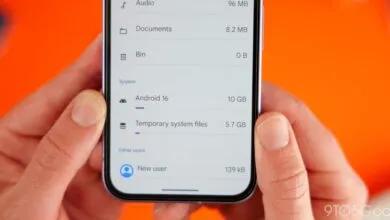
According to Hanff, Chrome quietly stores roughly 4GB of AI model files on users’ machines, though many have reported difficulty locating the data. The files reside in a folder named OptGuideOnDeviceModel, with the largest component being a file called weights.bin. Hanff believes this contains the core of Gemini Nano, Google’s streamlined, on-device version of its larger language model.
The researcher explains that the Nano model gets installed on any device meeting minimum hardware requirements. Chrome reportedly offers no prompt for user approval before installation, nor does it provide a straightforward setting to opt out or delete the files. If you manually remove the model by digging through Chrome’s install directory, Hanff says it will automatically redownload the next time you restart the browser,with no notification that it’s happening. He confirmed this behavior on both Windows and macOS systems.
Gizmodo reached out to Google for clarification. A company spokesperson stated: “We’ve offered Gemini Nano for Chrome since 2024 as a lightweight, on-device model. It powers important security capabilities like scam detection and developer APIs without sending your data to the cloud. While this requires some local space on the desktop to run, the model will automatically uninstall if the device is low on resources. In February, we began rolling out the ability for users to easily turn off and remove the model directly in Chrome settings. Once disabled, the model will no longer download or update.”
Hanff isn’t the first to notice this. Over the past year, numerous users across IT forums and online communities have flagged the mysterious 4GB file, often wondering what it is and how to eliminate it.
Evidence strongly suggests the file is indeed an on-device version of Gemini Nano. While Google doesn’t explicitly ask permission to install it, the company isn’t entirely hiding the process,if you know where to look. According to Google’s own documentation, the on-device AI model handles most AI-related tasks, and there’s even an API for developers to tap into it.
The closest Google comes to explaining this to users is buried in Chrome’s terms of service. That document reads: “We’re constantly developing new technologies and features to improve our services. For example, we use artificial intelligence and machine learning to provide you with simultaneous translations, and to better detect and block spam and malware. As part of this continual improvement, we sometimes add or remove features and functionalities, increase or decrease limits to our services, and start offering new services or stop offering old ones. When a service requires or includes downloadable or preloaded software, that software sometimes updates automatically on your device once a new version or feature is available.”
So, what can you actually do about this AI model on your device?
Start by checking if it’s there. Type chrome://on-device-internals into Chrome’s omnibar. This page will confirm whether the model is present and how much space it occupies.
Removal options depend on your browser version. If Google has rolled out the opt-out feature mentioned by the spokesperson, go to Chrome’s Settings menu, select System, and choose “Turn On-device AI on or off.”
If that option isn’t available, users have found workarounds. Hanff suggests typing chrome://flags in the omnibar and disabling AI-related features to prevent automatic redownload after deletion. Others recommend changing the weights.bin file to read-only to block reinstallation. Be aware that some users report the browser acting oddly after removing the AI model, and you should expect no AI-related features to function once it’s gone.
(Source: Gizmodo.com)