Fix Plex Buffering with These 3 Settings Changes
▼ Summary
– Plex’s default settings often cause unnecessary buffering by conservatively lowering streaming quality and forcing transcoding, even on capable hardware and networks.
– Adjusting the remote and local streaming quality settings to “Original” or “Maximum” on both the server and playback devices can enable direct play and reduce buffering.
– Enabling “Allow Direct Play” and “Allow Direct Stream” in the playback device’s settings helps avoid the processing overhead of transcoding.
– Optimizing network settings, such as ensuring remote access is fully accessible and configuring port forwarding, improves streaming stability and reliability.
– The article emphasizes that Plex’s default configurations prioritize broad compatibility, but manual tuning of a few key settings can quickly resolve performance issues.
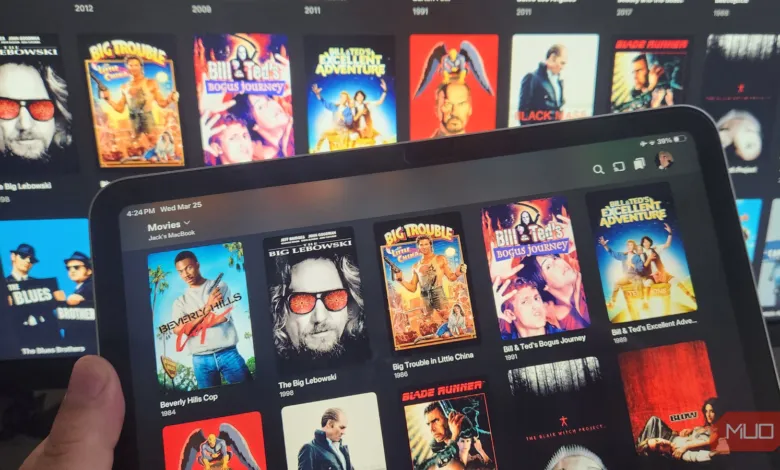
Few things are as frustrating as settling in for a movie night, only to have your Plex stream freeze and buffer repeatedly. This common issue, discussed for years across user forums, stems from a core design philosophy. The platform’s default settings prioritize broad compatibility and stability over raw performance, often leading to unnecessary quality reductions and server strain even on capable hardware. The good news is that a few targeted adjustments can transform your experience, delivering smooth, buffer-free playback almost instantly.
The first and most impactful change involves streaming quality limits. By default, Plex conservatively caps both remote and local stream quality to prevent issues. This often triggers unnecessary transcoding, where the server converts media files on the fly, consuming resources and causing stutter. To stop this, log into Plex Web, navigate to Settings, and under Remote Access, input your actual upload speed from a speed test. Then, in the Quality settings, set Remote streaming quality to Maximum or Original. Crucially, you must also adjust the settings on each playback device, like your smart TV or phone. In the device’s Plex app, go to Video & Audio settings and set both Local and WiFi Quality to Maximum or Original. This encourages direct play, allowing your device to handle the original file without server conversion, drastically improving efficiency.
Next, take direct control over transcoding behavior. Every time Plex transcodes, it adds processing overhead that can lead to buffering. Your goal is to force direct play or direct stream whenever possible. On your playback device, delve into the advanced settings, often found under Settings > Advanced > Player. Ensure both “Allow Direct Play” and “Allow Direct Stream” are enabled. On the server side, visit Settings > Transcoder and review for any overly restrictive options. You can verify your success during playback by checking the on-screen info; it should state “Direct Play” or “Direct Stream” instead of “Transcoding.” Minimizing this real-time conversion is a direct path to smoother streaming.
Finally, optimize your network settings for a more stable connection. Plex includes several network options that are easy to miss but vital for reliability. Start in Settings > Remote Access and confirm your server shows as “Fully accessible outside your network.” If it doesn’t, you may need to enable port forwarding on your router for port 32400 and assign your Plex server a static local IP address. Additionally, under Settings > Network, consider setting Secure connections to “Preferred” instead of “Required” if you encounter persistent connection problems. These steps help Plex establish a direct, efficient pathway for your data, avoiding slower relay servers that can introduce lag and buffering.
The immediate improvement after applying these tweaks is often remarkable. The core lesson is that Plex’s out-of-the-box configuration aims for universal function, not peak performance on your specific setup. Investing a few minutes to adjust these three areas,quality limits, transcoding, and network access,unlocks the full potential of your existing hardware and internet connection. Once configured, test a variety of media files across your devices to ensure consistent, buffer-free playback. While you can always revert to defaults, these proactive changes typically provide a permanent and satisfying solution to streaming woes.
(Source: MakeUseOf)