5 Key Windows 11 Update Rule Changes You Need to Know
▼ Summary
– Microsoft is adding new pause controls, a redesigned Power menu, fewer forced restarts, and smarter recovery features to Windows 11 updates.
– The Power menu now separates “Update and shut down” and “Update and restart” from standard “Shutdown” and “Restart” options.
– Updates will bundle firmware, drivers, and other products into the monthly cycle, requiring only one restart per month.
– Windows 11 now allows users to skip system updates during the Out-of-box Experience (OOBE).
– The option to pause updates indefinitely still requires manual extension, and the system will resume automatic updates if the pause expires.
For years, Windows Update has ranked among the most frustrating aspects of using a PC. Now, based on the latest shifts in Windows 11, Microsoft appears ready to address that pain. The company is rolling out adjustments designed to strike a better balance between security and user autonomy, giving people more control over when and how updates install.
After reviewing the changes in detail, several stand out as genuinely meaningful. Users will gain new pause controls, a redesigned Power menu, fewer forced restarts, and smarter recovery options when updates fail. These features aim to make the entire process more transparent and less intrusive.
These updates are currently available in the Experimental channel for version 25H2, though a wider release timeline outside the Windows Insider Program remains unclear.
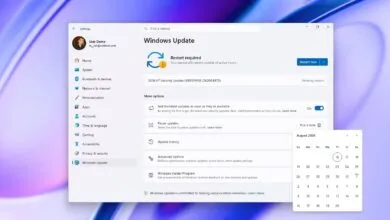
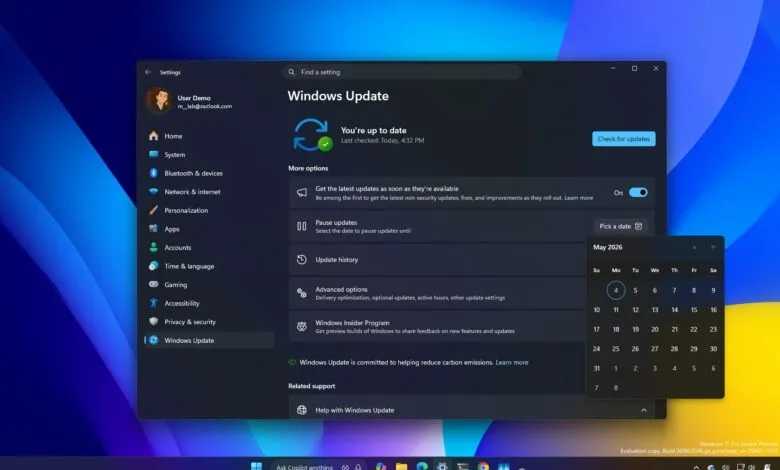
One of the most talked-about changes is the ability to pause automatic updates indefinitely. While the system still enforces a 35-day limit, you can now reschedule the pause as many times as you like. The catch is that you must manually repeat the steps before each pause expires. If you forget, the system will resume installing updates automatically.
To pause updates, go to Settings > Windows Update and use the new calendar picker to delay installations.
The Power menu is also getting a significant overhaul. It now separates update-related actions from standard shutdown options. You’ll see distinct entries for “Update and shut down,” “Update and restart,” alongside plain “Shutdown” and “Restart.” This means if an update is pending, using the standard options will perform the power action without installing updates first.
Microsoft is also improving update visibility. Driver updates now include more descriptive labels, making it easier to identify whether they apply to battery, audio, display, or other hardware components. Additionally, the Windows Update page now features a collapsible “Available updates” view that lists system updates, firmware, and drivers waiting to be installed.
Recognizing that frequent reboots have been a major source of frustration, Microsoft will now bundle firmware, drivers, and other product updates into the monthly system update cycle. This approach requires only one restart per month, significantly cutting down on disruption.
For users who have struggled with failed updates, the company is implementing a system that will automatically fix installation issues in the background. This eliminates the need to manually download and install packages from the Microsoft Update Catalog, saving time and reducing troubleshooting steps.
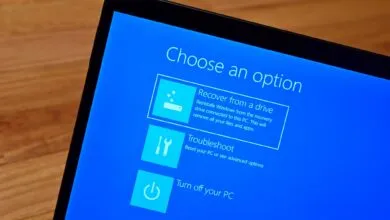
Finally, during the Out-of-Box Experience (OOBE) , Windows 11 now allows you to skip system updates. However, if you choose to skip, the computer will not download the latest drivers, features, or security patches until you manually trigger a download or the system resumes updating automatically.
From a long-term perspective, these changes feel like incremental fixes rather than a complete shift in control. I appreciate the direction. The improved Power menu alone addresses a long-standing annoyance, and bundling updates into a single monthly reboot is long overdue.
Still, I’m not entirely convinced Microsoft is ready to loosen its grip. The option to pause updates indefinitely sounds better in theory than in practice. You must keep extending it manually, and if you forget, the system immediately resumes automatic updates. That’s exactly the kind of behavior that frustrates people.
The setup experience also reveals the company’s priorities. Having to confirm skipping updates twice suggests Microsoft still prefers users stick with the default path. The company clearly values keeping systems updated, even if it means adding friction to user choice.
In summary, these changes make Windows Update less annoying but not fully flexible. I’d recommend taking advantage of the new controls and visibility improvements, but I’d still be cautious about relying on them for complete control. Are these updates enough to improve your experience? Let me know in the comments.
(Source: Windows Central)