Stop Thieves From Blocking Your Lost Phone’s Location
▼ Summary
– A stolen phone is disruptive because it often contains essential digital items like tickets, keys, and payment methods.
– iPhone users can increase recovery odds by disabling Control Center access from the lock screen in their settings.
– This prevents thieves from easily activating airplane mode, which would disable the network-dependent Find My feature.
– Android users cannot lock the control center but can remove the airplane mode button from its quick settings menu.
– Both Apple and Google’s tracking services allow for remote actions like erasing data or locking the phone after a theft.
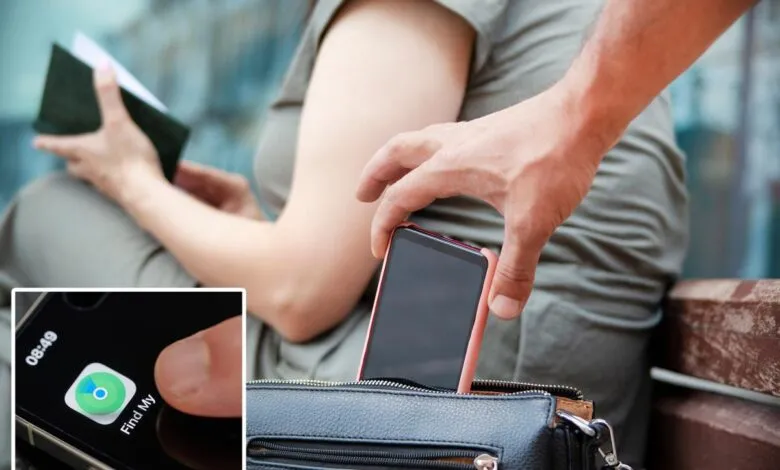
Losing a smartphone is a uniquely stressful modern experience. These devices are no longer just for calls, they are our digital wallets, travel documents, and primary cameras. A theft can derail a vacation and force an expensive replacement. For iPhone users, however, a critical security setting can significantly improve the odds of recovery by preventing thieves from severing its connection.
Most people rely on Apple’s Find My network to locate a missing device. This service depends on the phone maintaining a link to Wi-Fi or cellular data. Savvy criminals know this. Their first move after a theft is often to activate airplane mode, instantly cutting the phone off from the tracking network. A standard lock screen does not stop this. By swiping down from the top-right corner, anyone can access the Control Center from the lock screen without a passcode or Face ID, and toggle airplane mode with a single tap.
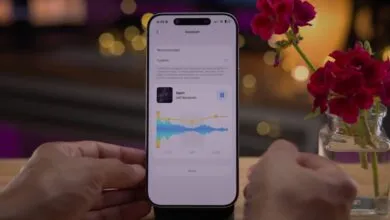
You can close this vulnerability. Navigate to Settings, then Face ID & Passcode. After entering your passcode, scroll to the “Allow Access When Locked” section. Here, you will find “Control Center” enabled by default. Simply toggle this setting off. Once disabled, accessing the Control Center from the lock screen will require authentication. A thief attempting that swipe will be blocked, unable to enable airplane mode and disconnect your device. This keeps your iPhone visible on the Find My app, dramatically increasing your chance of tracking it down.
The situation differs for Android devices. While Google’s Find My Device is a powerful tool, there is no universal setting to lock the quick settings panel. A practical workaround is to remove the airplane mode shortcut entirely. Swipe down twice to open the full quick settings menu, tap the three-dot icon, and select “edit buttons.” You can then tap the minus sign to remove the airplane mode tile from the panel, adding an extra step for anyone trying to disable connectivity.
Regardless of your phone’s operating system, both Apple and Google’s find-my-phone services offer a final layer of protection. If recovery seems impossible, you can use them to remotely lock the device, erase all personal data, or change account passwords to secure your digital life after the physical phone is gone. Taking a moment to adjust these settings today could save considerable hassle and expense tomorrow.
(Source: New York Post)