14 Windows 11 Default Settings to Change for Privacy and Performance
▼ Summary
– Windows 11’s default settings prioritize Microsoft’s services and data collection, which can clutter the interface, drain resources, and impact user privacy and control.
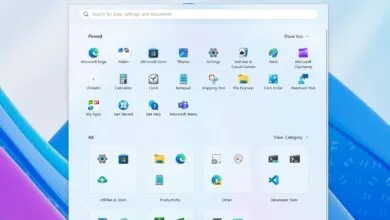
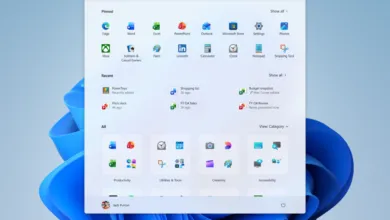
– The Start menu includes web search results and promotional recommendations by default, which can slow down local searches and add distractions.
– The operating system enables extensive diagnostic data collection and location tracking by default, with limited options for users to fully opt out.
– Users are strongly encouraged to use a Microsoft account during setup, and the system displays full-screen prompts to adopt additional Microsoft services after installation.
– Several features like pre-installed apps, background Edge processes, and a simplified right-click menu are enabled by default, which can affect system performance and usability.
While Windows 11 presents a sleek and modern interface from the first boot, its default configuration is heavily oriented toward Microsoft’s ecosystem. This design prioritizes cloud integration, background services, and promotional content, often at the expense of straightforward user control, system privacy, and optimal performance. For those seeking a more streamlined and private computing environment, adjusting several key settings is essential. This guide outlines the most impactful changes to make.
A primary point of friction is the Start menu search. By default, it mixes local results with web suggestions powered by Bing, which can slow down searches and reduce accuracy when you’re simply looking for an app or file. To disable this, navigate to Settings > Privacy & security > Search and turn off the “Show search highlights” toggle.
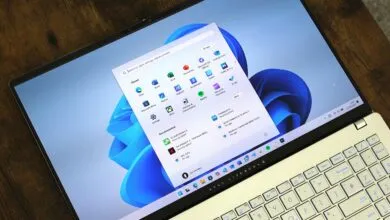
Similarly, the Start menu’s “Recommended” section often blends useful recent files with promotional content and app suggestions. To clean this up, go to Settings > Personalization > Start. You can turn off the toggle for “Show recommendations for tips, shortcuts, new apps, and more” or disable all options under the Recommended settings to hide the section entirely.
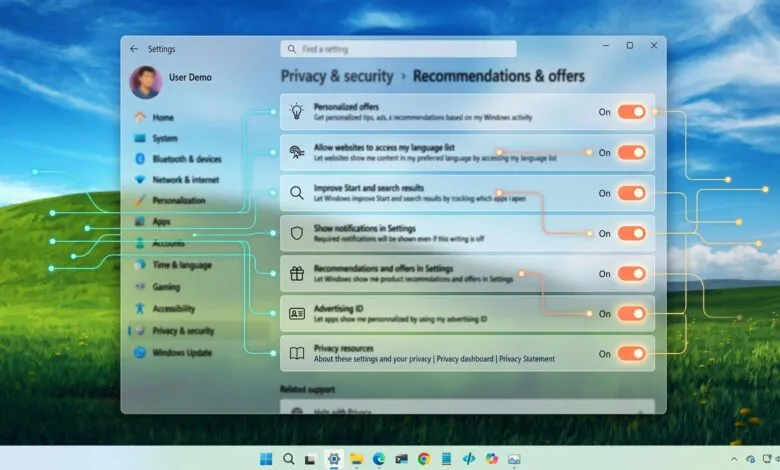
Diagnostic data collection is enabled by default, gathering usage patterns and system activity. The setup process opts users into this telemetry, requiring active steps to limit it. To reduce data sharing, visit Settings > Privacy & security. Under Diagnostics & feedback, turn off “Send optional diagnostic data”. In the Recommendations & offers section, you can also disable optional telemetry and tailored experiences.
Following system updates, users are often interrupted by full-screen prompts urging them to set up services like Microsoft 365 or OneDrive. These post-setup prompts feel more like advertisements than helpful reminders. To stop them, go to Settings > System > Notifications > Additional settings and clear the toggle for “Suggest ways to get the most out of Windows and finish setting up this device”.
The Taskbar comes pre-pinned with features like Widgets and Copilot, which can create unnecessary clutter. To reclaim space, simply right-click any unwanted icon and select “Unpin from taskbar”. For an even cleaner look, you can change the search box to just an icon in Settings > Personalization > Taskbar.
Microsoft strongly encourages signing in with a Microsoft account during setup, making the process of creating a local account more obscure. While an online account enables syncing, a local account offers a simpler, standalone experience. Bypassing the account requirement currently requires a specific workaround during the initial setup process.
The operating system ships with various preinstalled apps and Start menu shortcuts that promote Microsoft services. These can be manually removed to reduce clutter, though the process is tedious. Go to Settings > Apps > Installed apps and uninstall any applications you do not need.
Windows Update is configured for automatic, mandatory installations and restarts. While crucial for security, this can lead to unexpected downtime. You can proactively schedule restart times in Settings > Windows Update when an update is pending, though options to pause updates for extended periods remain limited.
BitLocker device encryption is often enabled automatically with the recovery key backed up to your Microsoft account. This is a strong security default, but it creates a dependency on cloud access for recovery. For better control, manually back up your recovery key to a secure offline location. You can review these settings under Settings > Privacy & security > Device encryption.
The “Find my device” feature uses continuous location tracking to help recover a lost PC. For most stationary desktop users, this is an unnecessary privacy trade-off. You can disable it during setup or afterward in Settings > Privacy & security > Find my device.
By default, File Explorer hides file extensions, which harms usability and can pose a security risk by masking malicious files. To show extensions, open File Explorer, select View, then Show, and check File name extensions.
The modern right-click context menu hides many advanced options behind a “Show more options” entry, adding an extra step for common tasks. You can instantly access the legacy menu by using the Shift + Right-click keyboard shortcut.
System-wide advertisements and promotions appear in areas like the Start menu, Settings app, and notifications, often pushing Microsoft 365 or OneDrive. While you cannot disable all promotional content, you can reduce it by turning off suggestions and tips in various privacy and personalization settings.
Even if you never open it, Microsoft Edge can consume system resources at startup through its “Startup boost” feature. To prevent this, you must first launch Edge, complete its setup, then go to Settings > System & performance > System and turn off the “Startup boost” toggle.
Ultimately, Windows 11 is highly configurable. Taking the time to adjust these defaults can transform the experience, reducing distractions, reclaiming system resources, and placing a greater emphasis on user privacy and control.
(Source: Windows Central)