Windows 11 Start Menu Gets Full Customization, Works Surprisingly Well
▼ Summary
– The new Windows 11 Insider build introduces a redesigned Start menu with section-level toggles to independently show or hide Pinned, Recommended (now called Recent), and All apps sections.
– Users can now choose between Automatic, Small, and predefined sizes for the Start menu, addressing complaints about it being too large.
– The update also adds a toggle to hide the user’s name and profile picture from the Start menu.
– Microsoft is rolling out a Low Latency Profile CPU boost to improve Start menu performance, but the company is still working on a fully native WinUI 3 Start menu for a permanent fix.
– The author considers this the most important Windows 11 interface update in a long time, as it removes restrictions and offers extensive customization for desktop users.
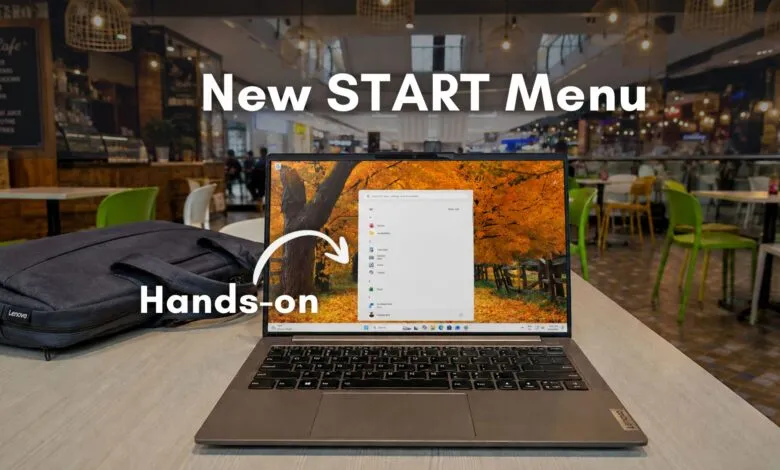
A new Windows 11 Insider build has arrived with the redesigned Start menu Microsoft teased earlier this month. After putting it through its paces, it seems the company has finally addressed a core frustration that has haunted the Windows 11 experience since launch.
The update is available as Windows 11 Insider Preview Build 26300.8553 in the Experimental channel, while Beta users receive Build 26220.8544. Only the Experimental build includes these Start menu changes for now. The new controls align with Microsoft’s earlier promise to make the Taskbar and Start menu more personal.
Honestly, the Windows 11 Start menu has been the most disliked since Windows 8. And the criticism was fair, coming from two main angles.
First, customization was gutted. Live Tiles, flexible layouts, full-screen mode, deeper organization, and even simple resizing were all gone.
Second, performance suffered. The Start menu felt sluggish, especially on lower-end hardware, where opening it often came with noticeable animation lag.
This update largely fixes the customization side. Performance is improving too, but that work isn’t finished.
Hands-on with the new Windows 11 Start menu
The biggest change is the sheer level of control.
Microsoft states, “It is your choice, and it should be easy to make.” After testing, that philosophy is clearly taking shape, perhaps a bit too well, as we’ll see.
The update adds section-level toggles that let you independently show or hide Pinned, Recent, and All sections. Everything is managed through a single redesigned Start settings page.
The Start menu has three sections: Pinned apps, Recommended, and All apps. The old settings page only let you turn off Recommended completely. The new page lets you turn off all three, and it renames Recommended to Recent. That’s a smart move, given the negativity around Microsoft’s suggestions.
I’ve never been a fan of Recommended and always turned it off. But this new Recent section is starting to look interesting. It offers nearly the same customizations as before, but it feels more real-time, showing files I recently opened.
You can customize Recent to show just recently added apps, files, or both. Or you can disable it entirely.
Now for the interesting part. The Start settings page now lets you turn off Pinned apps and All apps as well.
Here is what the Start menu looks like without Pinned apps:
Turning off the Recent toggle makes it even more interesting:
Yes, there’s a lot of white space when you turn off Pinned and Recent. But Microsoft has given a fix users have been asking for: the Start menu was getting too big, covering almost the entire screen.
Now, Microsoft offers three choices for the Start menu size:
- Automatic adapts to screen size, but it was always too large for my taste.And don’t forget, All apps already has its own customizations. Here is what it looks like in Grid view and List view, with Pinned and Recent off:I find myself leaning toward the Category view with small size enabled. But for people who use only a handful of apps and don’t want the full list or grid, disabling All and Recent and keeping just Pinned apps is a godsend.Of course, if you don’t like the small white space below, you can always turn on Recent. The resemblance to the original Windows 11 Start menu is, dare I say, nostalgic:Funny enough, disabling All and Pinned apps and manually removing each Recent app (while not disabling it) shows an empty Start menu:And in case you’re wondering, here is the Start menu when everything is turned off:Notice the missing name and profile picture? That’s because there’s now a toggle to hide the name and profile picture on the Start menu:Needless to say, this is insane levels of customization, something only Microsoft can do.That said, freeform resizing is still not allowed. You cannot drag the edges like in Windows 10. Instead, you choose between predefined sizes.Still, I’m delighted with all the new changes. The only remaining issue is performance.A native Start menu is still in the worksMicrosoft has started rolling out the new Low Latency Profile CPU boost through the May 2026 optional update KB5089573.After enabling Low Latency Profile on my machine, Start definitely feels smoother. The menu opens faster, animations are less choppy, and some micro-stutters that became normal over the last few years are reduced.But this is still a workaround for a deeper issue. The real performance fix is a fully native Start menu.Microsoft has confirmed it is rebuilding more core Windows components using native WinUI 3 frameworks. We recently reported on Microsoft’s broader push toward native Windows applications, including the Start menu, as part of an effort to make Windows feel faster and more responsive again.We didn’t see any major additions to the Start menu, as Microsoft already worked on five different designs. But for the first time since Windows 11 launched, I opened the new Start menu and felt like Microsoft was removing restrictions instead of adding them.There is still work to do, especially around responsiveness and performance. But after years of complaints about wasted space and limited customization, this “redesign” finally feels like a Start menu built for desktop users again.And I believe this is the most important Windows 11 interface update in a long time.