I tested Windows 11’s new taskbar: resizing returns, but it’s not Windows 10
▼ Summary
– Windows 11 preview build 26300.8493 restores the ability to place the Taskbar at the top, bottom, left, or right edge of the screen, with interface elements adapting automatically.
– The update reintroduces Taskbar resizing via the “Show smaller taskbar buttons” option, which now also shrinks the Taskbar itself to save screen space.
– Unlike Windows 10’s drag-and-drop repositioning, Windows 11 requires manual selection in Settings > Personalization > Taskbar under “Taskbar behaviors.”
– The new implementation lacks features from Windows 10, such as freeform height adjustment via dragging and support for multi-row Taskbars.
– Microsoft acknowledges auto-hide and tablet-optimized Taskbar do not work properly in non-bottom positions, with further refinements still in development.
After years of user frustration, Microsoft is finally rolling out significant Taskbar enhancements for Windows 11, including the ability to reposition and resize it. But while these changes address long-standing complaints, they still fall short of the flexibility that Windows 10 users enjoyed for years.
As part of the Windows K2 initiative, Microsoft aims to rebuild trust by tackling the operating system’s biggest pain points. The latest preview build from the Experimental channel for version 25H2 restores the option to dock the Taskbar on any screen edge. It also introduces a setting to shrink the Taskbar, giving users back valuable screen real estate.
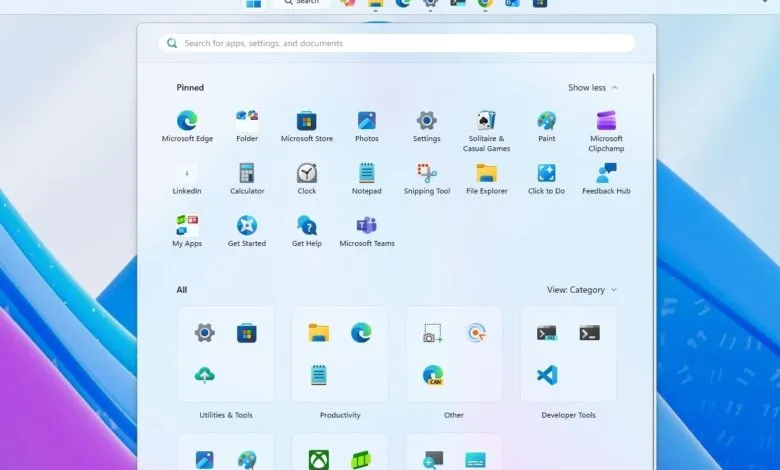
When Windows 11 debuted, its sleek new Taskbar stripped away basic features, including the ability to move it. Now, with build 26300.8493, users can place the Taskbar at the top, bottom, left, or right. The interface adapts automatically: for instance, the Start menu opens downward when the Taskbar is at the top. System tray icons and the date display align correctly regardless of position, though the vertical layout shows the year in an abbreviated format and omits seconds.
A welcome detail is that the “Never combine” option works with app labels on both left and right orientations. You’ll find the new position controls under Settings > Personalization > Taskbar > Taskbar behaviors. Each option even generates a live desktop preview, a nice touch.
Microsoft is still refining the experience. Auto-hide doesn’t function properly, and the tablet-optimized Taskbar only works at the bottom. Still, the return of Taskbar resizing is a major win. The original Windows 11 Taskbar was noticeably taller, optimized for touch. Now, a new option reduces its height and button size, making the desktop feel more compact and familiar. The change is subtle but immediate, and it doesn’t require a sign-out or restart.
Rather than adding a new toggle, Microsoft has repurposed the “Show smaller taskbar buttons” option. Previously, it only shrank icons. Now, enabling it also shrinks the Taskbar itself. You can set it to “Always” for a permanently smaller bar, or “When taskbar is full,” which triggers the smaller layout only when space runs out, avoiding the overflow menu.
Despite these improvements, the implementation feels incomplete compared to Windows 10. On the older OS, you could simply drag the unlocked Taskbar to any edge. On Windows 11, repositioning requires navigating through Settings menus. Dragging is not supported. Similarly, Windows 10 let you freely resize the Taskbar height by dragging its edge, enabling multiple rows of apps. That flexibility is still absent here.
The new approach isn’t bad, but Windows 10 was clearly more intuitive and powerful. It’s encouraging to see Microsoft finally bringing these features back; they never should have disappeared. The ability to move or shrink the Taskbar may seem minor, but these are the kinds of customization options people value. Their removal made Windows 11 feel unnecessarily restrictive.
Still, this feels like cautious reintroduction rather than full commitment. The process is buried in Settings, and multi-row Taskbars remain missing. That said, these changes matter because they signal Microsoft is listening to feedback and walking back design decisions that alienated power users. Over the past few years, we’ve seen the company slowly reverse several Windows 11 choices, and this is another example of realizing that removing customization was a mistake.
What do you think about these new Taskbar features? Share your thoughts in the comments. For more Windows 11 and 10 tips, guides, and troubleshooting, explore our resources. Join the discussion on Reddit at r/WindowsCentral.
(Source: Windows Central)