Unlock Hidden Amazon Fire TV Stick Features
▼ Summary
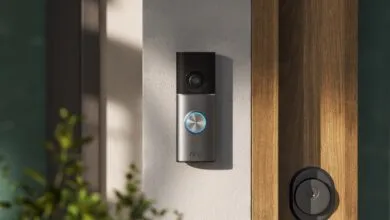
– You can link a Ring doorbell to an Amazon Fire TV Stick to view its live camera feed directly on your television.
– Once paired, the live feed automatically appears as a picture-in-picture window during doorbell rings or motion detection.
– The setup requires enabling the Ring skill in the Alexa app and configuring announcement settings for the Fire TV Stick.
– When the feed appears, you can maximize it to full screen, hear audio, and use the remote’s Alexa button to speak to visitors.
– You can also manually display the live feed at any time by using a voice command through the Fire TV remote.
Imagine the convenience of seeing who’s at your front door directly on your television screen without ever reaching for your phone. Linking your Ring doorbell to an Amazon Fire TV Stick unlocks this seamless functionality, allowing live camera feeds to appear automatically or on command. This integration transforms your viewing experience, merging home security with entertainment in a surprisingly practical way.
Once properly paired, your Ring device will send a live video feed to your TV whenever the doorbell rings or motion is detected. This appears as a picture-in-picture window that you can expand to full screen. From there, you can not only see your visitor but also hear them and speak back using your remote. The setup process is straightforward and begins within the Alexa mobile app.
Open the Alexa app on your smartphone. Tap the menu icon, typically represented by three lines, and navigate to the Skills & Games section. Use the search function to find “Ring” and select the official skill from the results. Enable the skill and follow the on-screen instructions to link your Ring account with Alexa. This establishes the basic connection between your accounts.
Next, you need to configure the announcements to route through your Fire TV Stick. Within the Alexa app, tap the Devices icon. Find your Ring doorbell in the list and access its Settings. Look for the Announcements section and select Announcement Devices. Here, you will choose your specific Fire TV Stick as the preferred device. You can then toggle on the options for Doorbell Press Announcements, Motion Announcements, or both according to your preference.
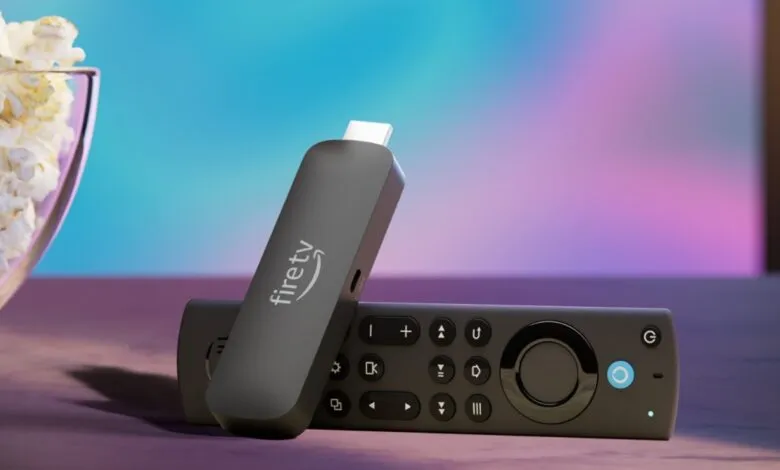
With the setup complete, the system is active. When a notification triggers the live feed, a small window will appear on your TV. To enlarge it, long-press the Home button on your Fire TV remote and select the feed, then choose the Full Screen option. To communicate with a person at your door, simply press and hold the microphone button on your remote to activate two-way talk. Dismissing the feed is easy; navigate to the picture-in-picture window, long-press the Home button again, and select the close icon.
You aren’t limited to automatic alerts. You can manually pull up the camera feed anytime by holding the voice button on your remote and saying, “Show me [the name of your Ring doorbell].” This hands-free command brings the live view to your screen instantly, offering a quick check on your property without interrupting your show. This feature set effectively turns your television into a central hub for both entertainment and home monitoring.
(Source: BGR)