Windows 11’s July updates: The most important changes for your PC

▼ Summary
– Windows Search can now automatically locate and index additional folder locations based on user activity and frequently accessed files, configurable under Settings > Privacy & security > Search.
– File Explorer improvements include faster deletion of large files, quicker Home page loading, touch scrolling for the Recommended section, and file sizes shown in KB, MB, or GB units.
– New touchpad gesture controls for Precision Touchpads allow adjusting scroll and zoom speed, plus accelerated scrolling for faster navigation through long documents.
– Taskbar positioning now supports moving to the top, left, right, or bottom of the screen, with an option to make the Taskbar smaller, available in the Beta channel.
– Start menu customization lets users show or hide sections, adjust menu size, and hide their name and profile picture, while the Account Control flyout gets a redesigned interface with subscription and storage details.
July wrapped up with a fresh wave of Windows 11 updates, and Microsoft closed out the month by pushing a steady stream of features through its Insider channels. While the second half of July didn’t introduce a flood of brand-new concepts, the company continued aligning its Experimental and Beta builds, bringing previously released capabilities to more users and refining existing tools across the board.
Among the highlights are expanded Start menu customization, new touchpad gesture controls, a redesigned Account Control flyout, and notable performance boosts for File Explorer. Microsoft also quietly enhanced Windows Search, Widgets, Phone Link, and even added support for HID-compatible Braille displays. If you’re tracking what’s coming next to stable Windows 11, here’s the breakdown of the most significant changes from the last two weeks of July.
Windows Search now finds relevant locations automatically
Starting with build 26300.9032, Windows Search gains a smarter indexing approach. The new feature, labeled “Automatically find additional relevant locations,” uses signals like frequently accessed files and folders to surface relevant content without requiring manual indexing. You’ll find the toggle under Settings > Privacy & security > Search.
Microsoft didn’t advertise it, but the same page also includes a new option called “Search the contents of online files,” giving you more control over whether Windows Search can index and query online content.
Phone Link gets a hover preview
On build 26300.9032, the Phone Link companion flyout in the Start menu now supports hover previews. When you rest your cursor over a recent message or notification in the “Recent” section, you’ll see the content without needing to click through. This requires Phone Link version 1.26021.3.0 or higher.
The same build also introduces an updated adaptive hibernate policy for version 25H2. The system now avoids hibernation when the battery is above 80 percent, and instead hibernates when it drops below 10 percent. That shift increases the use of instant-on resumes from Modern Standby while preserving battery life at the low end. These changes also appear in builds 28120.2630 and 28020.2623 for version 26H1.
File Explorer gets faster and more flexible
Build 26300.8935 brings three specific improvements to File Explorer. Deleting large or fragmented files is now quicker, the Home page loads faster, and the “Recommended” carousel supports touch scrolling for easier browsing.
On build 26220.8925 for version 25H2, the Details view now displays file sizes in appropriate units like KB, MB, and GB, instead of defaulting to kilobytes only. Additionally, on the Home page, you can now middle-click a folder to open it in a new tab.
Widgets icons get a visual refresh
The same build also updates the Widgets entry point in the Taskbar. The animated icon now matches your system accent color instead of the default red, and it can display more dynamic content when notifications are enabled in the Widgets dashboard.
Fewer restarts for system updates
On build 28120.2630 in the Experimental channel for version 26H1, Microsoft is testing a unified update experience that coordinates driver, . NET, and firmware updates with the monthly quality update. The goal is to consolidate everything into a single monthly reboot, cutting down on interruptions. Users also get expanded pause controls, allowing them to extend update pauses as many times as needed. These changes are mirrored in build 28020.2623 in the Beta channel.
New touchpad gesture controls
Builds 28120.2630 and 28020.2623 for version 26H1 add new Precision Touchpad settings through the Settings app. You can now adjust scroll and zoom speed, and enable accelerated scrolling, which increases scrolling speed the longer you continue, making long documents and webpages easier to navigate. Most apps will work with these controls out of the box, though WinUI 3 apps will need updated WinAppSDK 1.8 or 2.0 support to take full advantage.
Smart card policy for remote sessions
Starting with build 28120.2546, Microsoft adds support for removing smart card policies in Azure Virtual Desktop and Windows 365 sessions using Microsoft Entra ID authentication. Admins can now configure remote sessions to disconnect automatically when a redirected smart card is removed, which helps enforce security and compliance. This change also lands on build 29639 in the Experimental channel for Future Platforms.
Braille display support improves
Narrator now works with HID-compatible Braille displays in build 28120.2546. Users can connect supported devices over USB with no extra setup, or wirelessly via Bluetooth. The feature also functions during the initial Out-of-Box Experience, allowing new users to configure a PC independently. This improvement is available across multiple builds, including 28020.2539 for version 26H1, 26220.8925 for version 25H2, and 29634 for Future Platforms.
Taskbar repositioning arrives
Build 26220.9022 for version 25H2 in the Beta channel introduces the ability to move the Taskbar to the top, left, right, or bottom of the screen. The new setting, called “Taskbar positions,” lives under Settings > Personalization > Taskbar > Taskbar behaviors. Tooltips, flyouts, and animations continue to work in any position, and most customization options, including never combining icons, remain available.
This build also adds a smaller Taskbar option. In the Beta channel, it works through the “Show smaller app icons” setting, but Microsoft plans to add a dedicated button under Taskbar behaviors in future releases, matching what’s already available in the Experimental channel.
Start menu customization expands
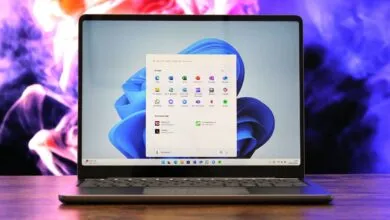
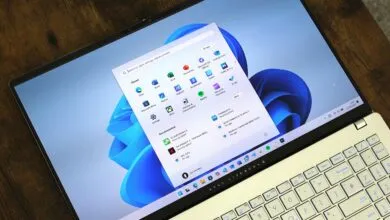
On build 26220.8925, the Start menu gets new customization controls. Under Settings > Personalization > Start, you can now show or hide individual sections and adjust the menu’s overall size. The “Recommended” section has been renamed to “Recent,” and there’s a new automatic sizing option that lets the system choose based on your configuration.
At the bottom of the page, under the “Other” section, you’ll find a new privacy toggle to hide your name and profile picture on Start, which is useful when projecting your screen.
Account Control menu gets a redesign
The Account Control flyout in the Start menu is also getting a modern refresh. The updated interface adds a subscription badge, making it easier to check your account status, review benefits, and explore upgrade options. It also surfaces storage details and account benefits directly, so you can manage your Microsoft account without opening the Settings app. This design is also present in build 29634 for Future Platforms.
Voice Isolation for Voice Access
On build 29634 in the Experimental channel, Voice Access introduces Voice Isolation, a feature designed to improve speech recognition in noisy environments. It uses on-device processing to filter out background noise and nearby conversations. Voice Access now includes three speech recognition models: “Voice Isolation,” “Remove background noise only,” and “No filtering.”
Final thoughts on July’s Insider releases
Looking at the second half of July, this wasn’t Microsoft’s most groundbreaking set of Insider updates. Much of what landed in the Beta and Experimental channels had already appeared elsewhere in the program. That’s not necessarily a bad thing. It suggests Microsoft is getting closer to a more consistent experience across all Insider channels, focusing on refinements that users will actually notice.
The bigger question is how quickly these features move to stable builds. Microsoft has been shipping faster lately, but Insider releases remain a preview of what’s planned, not a guarantee of what will ship. Still, the direction is clear, and the improvements to search, File Explorer, and update management are worth keeping an eye on.
What do you think of these latest Windows 11 Insider changes? Share your thoughts in the comments below.
For more in-depth guides, troubleshooting tips, and essential advice on getting the most out of Windows 11 and 10, explore our resource hub. And join the conversation on Reddit at r/WindowsCentral to discuss the latest news and reviews.
(Source: Windows Central)