Frustrated by iOS 26’s New Preview App? Here’s the Quick Fix
▼ Summary
– Apple introduced the Preview app for iPhone and iPad in iOS 26, which allows system-wide file viewing without needing specific apps.
– The author finds Preview redundant on iPhone since the Files app already handled viewing PDFs and images directly within it.
– Preview disrupts workflow by bouncing users from Files to Preview, making tasks like swiping through photos cumbersome.
– Users can revert to the old Files behavior by deleting the Preview app, which restores in-app file viewing functionality.
– The Preview app can be reinstalled from the App Store if needed, offering flexibility for users who may want it later.
Finding yourself annoyed by the new Preview app in iOS 26? You’re not alone. Many iPhone users are discovering that what was intended as a helpful tool for viewing files has instead become a source of frustration, interrupting their usual workflow. The good news is there’s a straightforward solution to restore the simplicity you’re used to.
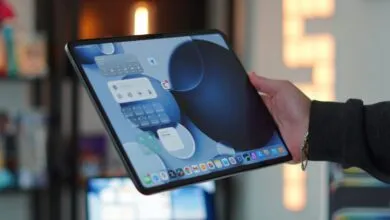
For years, Mac users have relied on Preview for quick file viewing, and now Apple has brought this feature to iPhones and iPads with the latest update. On the iPad, where multitasking and file management are more prominent, the addition makes sense. You can pin folders to the dock in iPadOS 26, so having a dedicated preview tool can speed up your work.
However, the experience on the iPhone feels entirely different and, frankly, less useful. The Files app already provided a perfectly good way to view documents, PDFs, and images without needing a separate application. Previously, tapping a file in Files would open it right there. Now, iOS 26 sends you out to the Preview app, creating an extra step that feels unnecessary.
Imagine you have a folder of downloaded photos. In the past, you could open the folder in Files and swipe through the images seamlessly. With the new system, you must constantly switch back and forth between Files and Preview, which breaks your concentration and slows you down. There is a “Quick Look” option available if you long-press a file, and this will keep the preview inside Files. The problem is you have to remember to use this workaround every single time, which isn’t always practical.
Fortunately, a very simple fix exists: you can delete the Preview app from your iPhone. Once you remove it, the Files app immediately reverts to its previous behavior, opening files directly within the app just like it did before iOS 26. This eliminates the annoying back-and-forth and gives you a much smoother, integrated experience. For anyone who prefers a minimal and efficient setup, this change brings back the straightforward functionality that made the Files app so reliable.
Should you ever find a need for the Preview app in the future, it remains available for download from the App Store, so you can reinstall it at any time.
(Source: 9to5 Mac)