8 Apple Watch Tips to Unlock Its Full Potential
▼ Summary
– Apple Watch now allows users to re-enable the swipe gesture to switch watch faces in WatchOS 26 by adjusting a setting in the Clock menu.
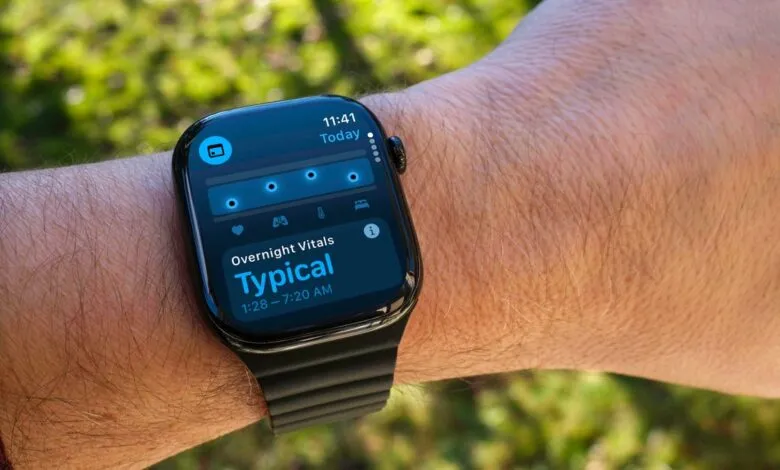
– The Vitals app collects overnight health data like heart rate and respiration to establish a baseline and alerts users to atypical readings for early detection.
– WatchOS 26 introduces the Wrist Flick gesture on newer models to dismiss notifications or return to the watch face without touching the screen.
– The Smart Stack provides quick access to widgets and Live Activities, with options to customize, pin favorites, and control automatic appearances.
– Users can pause their Exercise rings in WatchOS 11 without breaking streaks and use the watch as a flashlight with adjustable brightness and modes.
Getting the most from your Apple Watch involves more than just checking notifications and tracking workouts. The latest models, including the Apple Watch Series 11, SE 3, and Ultra 3 running WatchOS 26, pack powerful features that can boost your productivity, enhance your fitness routine, and simplify daily tasks. Here are several tips to help you unlock everything your device has to offer.
Switching between different watch faces just got easier again. For a while, Apple removed the ability to swipe left or right to change faces, likely because accidental touches were too common. The alternative method required holding the screen, swiping, and then tapping to confirm. Many users found they actually missed the quick swipe gesture. Good news: in WatchOS 10.2 and later, including the current version, you can re-enable it. Just navigate to Settings > Clock and toggle on “Swipe to Switch Watch Face.”
Monitoring your overall wellness is simpler with the Vitals app. When you wear your Apple Watch to bed, it collects data on your heart rate, breathing, wrist temperature (on compatible models), and sleep duration. The Vitals app builds a personal baseline for these metrics. If any readings fall outside your typical range, the app flags them as atypical. This isn’t a medical diagnosis, but it can serve as an early warning to consult a healthcare professional. For watches sold before January 29, 2024, blood oxygen readings appear directly in Vitals. Due to a legal dispute, newer U.S. models send this data to the iPhone Health app instead.
A clever new feature called Wrist Flick lets you interact with your watch without touching the screen. Available on Series 9 and later, plus Ultra 2 and Ultra 3, this gesture involves a quick twist of your arm toward the top of the watch. Use Wrist Flick to dismiss incoming calls, silence alarms, or clear notifications. It also works as a handy shortcut to immediately return to your watch face from any app or view, saving you from repeatedly tapping the back button.
The Smart Stack provides a curated list of information widgets accessible right from your watch face. Turn the Digital Crown clockwise or swipe up from the bottom of the screen to see tiles for weather, calendar events, or photo memories. This is especially useful if you prefer a minimalist watch face with few or no complications. Live Activities, like food delivery updates or active timers, can also appear here automatically.
If you find Live Activities too disruptive, you can control their behavior. Open the Settings app on your watch, go to Smart Stack > Live Activities, and turn off “Auto-Launch Live Activities.” You can also disable “Allow Live Activities” entirely here. For more granular control, configure settings per app using the Watch app on your iPhone.
You aren’t limited to the widgets Apple suggests. You can pin your favorite widgets to the Smart Stack for instant access. For example, to add a 10-minute timer, open the Smart Stack and tap the Edit button. Tap the plus icon, find the Timers app, and select the “Set Timer 10 minutes” option. Drag it to your preferred position and tap the checkmark to save. To ensure it stays near the top, tap the yellow Pin button while editing, though note that Live Activities may still take priority.
Your Apple Watch doubles as a convenient hands-free flashlight. Press the side button to open Control Center and tap the flashlight icon. The entire screen lights up white, turn the Digital Crown to adjust brightness. Swipe left to switch to a flashing white light or a solid red screen. The flashing mode is particularly helpful for increasing your visibility to drivers during nighttime walks or runs. Press the Digital Crown to turn it off.
Life sometimes gets in the way of your fitness goals. If you’re sick or traveling, you no longer have to break your Activity ring streak. Open the Activity app and tap the Weekly Summary, then scroll down and select “Pause Rings.” You can choose to pause for a day, until next week or month, or for a custom period. When you’re ready to resume, go back to the same spot and tap “Resume Rings.”
When starting a workout, a three-second countdown usually appears. If you’re already moving, like on an Outdoor Walk, you can skip this. Simply tap the countdown screen once to begin your workout immediately, ensuring you don’t miss recording those initial steps.
Like any computer, your Apple Watch can occasionally have an app freeze or misbehave. To force-quit an app, double-press the Digital Crown to see your recent apps. Swipe left on the problematic app until a red X appears, then tap it to close the app. Remember, this is only necessary for unresponsive apps, there’s no need to regularly quit apps that are working fine.
Exploring these features can significantly enhance how you use your Apple Watch every day, making it an even more integral part of your routine.
(Source: CNET)