Extend Your MacBook Battery Life With This Setting
▼ Summary
– Apple has introduced a Charge Limit setting for Macs to help preserve long-term battery health by preventing overcharging.
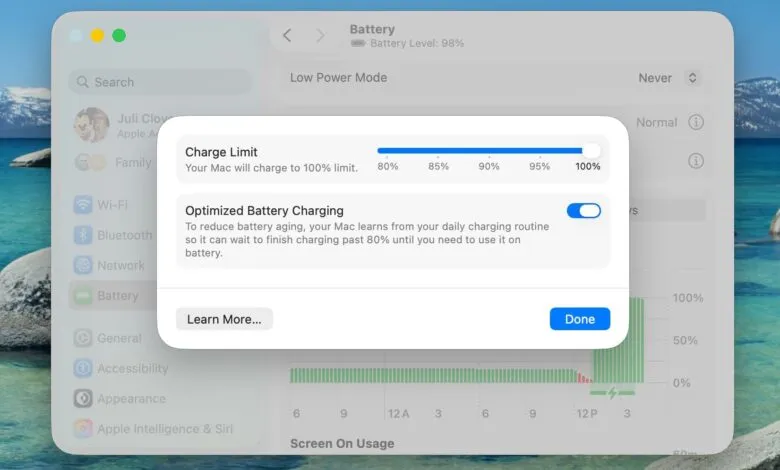
– This feature works by letting users cap their MacBook’s maximum charge at 80, 85, 90, 95, or 100 percent.
– It is distinct from Optimized Battery Charging, which delays charging based on routine but may still allow a full charge.
– The setting is ideal for users who primarily use their MacBook plugged in, as a lower cap reduces battery wear.
– Users can set the limit in System Settings under Battery, and the Mac will generally stop charging at the chosen level.
For many remote workers, a MacBook often remains connected to power for extended periods, a habit that can inadvertently shorten the battery’s lifespan. Apple has introduced a valuable tool to combat this: a battery charge limit setting now available in macOS. This feature, similar to one found on recent iPhone models, allows you to set a maximum charging threshold to help preserve your Mac’s long-term battery health.
The science behind this is straightforward. Lithium-ion batteries experience the most stress and degradation when maintained at a full 100% charge for prolonged times. By capping the charge at a lower level, you significantly reduce the chemical wear that permanently diminishes capacity. This new setting provides more direct control than the existing Optimized Battery Charging feature, which intelligently delays full charges based on your habits but may still allow the battery to reach maximum capacity regularly.
Choosing the right limit involves balancing your daily needs with battery preservation. If your MacBook is primarily docked at a desk, setting a charge limit of 80% is an excellent strategy for maximizing battery longevity. You sacrifice some untethered runtime for substantially reduced wear. Conversely, if you frequently work on the go, a higher cap like 90% or 95% offers a practical compromise, still curbing degradation while providing more usable battery life when unplugged.
Configuring this feature is simple. Open System Settings from the Apple menu, select Battery in the sidebar, and click the information button next to Charging. You will find a slider to set your preferred maximum charge level, with options at 80%, 85%, 90%, 95%, or 100%. Once selected, your Mac will stop charging upon reaching that threshold. The Optimized Battery Charging function will continue to operate in the background unless you manually disable it.
It is important to understand that the system may occasionally charge to 100% to calibrate its battery level estimates, but it will consistently adhere to your set limit for daily use. This proactive setting is a powerful way to extend the functional life of your MacBook’s battery, ensuring it retains more of its original capacity for years to come.
(Source: MacRumors)