Fix Your PC’s Slow RAM Performance With One Simple Setting
▼ Summary
– Users may find their RAM running below its rated speed due to a default BIOS setting called XMP (or EXPO for AMD), which is often switched off to prioritize stability.
– To check current RAM speed, open Task Manager’s Performance tab and compare the Speed number to the rated speed on the RAM packaging or in CPU-Z’s SPD tab.
– XMP (Extreme Memory Profile) is a tested performance profile that allows RAM to run at its advertised speed, and enabling it is a safe form of overclocking.
– To enable XMP, restart the PC, enter the BIOS (using keys like Delete or F2), find the XMP toggle (often in EZ Mode or under AI Tweaker/OC tab), and set it to Profile 1.
– After saving and exiting BIOS, confirm the speed in Task Manager; note that BIOS updates may reset XMP to off, requiring a re-check.
If your PC feels sluggish despite having plenty of memory, the culprit might not be your hardware’s age or a bloated operating system. It could be a single, hidden setting that forces your RAM to run far slower than its advertised capability. I learned this the hard way after upgrading to 16GB of RAM, only to find Chrome still struggling and games stuttering. The extra memory made no difference because it was effectively operating at half speed, all due to a default configuration that leaves performance on the table.
The first step is to check your RAM’s actual speed. Open Task Manager, navigate to the Performance tab, and select Memory on the left. Look for the Speed value. On Windows 11, this is displayed in MT/s (Megatransfers per second), while older systems might show MHz. Compare this number to the rated speed printed on your RAM’s sticker or packaging. A common mismatch is a 3600 MT/s kit running at 2400, or a DDR5 6000 kit stuck at 4800. If the numbers don’t match, your memory is being throttled.
If you don’t have the original box, a free utility called CPU-Z reveals the rated speed. Open the SPD tab and scroll to the Timings Table. Look for a column labeled XMP (or EXPO on AMD DDR5 kits). The header will show something like XMP-3200 or XMP-3600 , that’s the speed you paid for.
The root cause is almost always a feature called XMP (Extreme Memory Profile). Intel’s standard, it’s the key to unlocking your RAM’s full potential. AMD uses EXPO; ASUS calls it DOCP; MSI labels it A-XMP on AMD boards. Regardless of the name, the function is identical. Every RAM stick has two speeds: a conservative, universal default set by the JEDEC standard, and a faster, tested profile stored as XMP. Your motherboard boots using the safe JEDEC default, so you must manually enable XMP to reach the rated speed. Technically, this is a form of overclocking, but since the profile is validated by the manufacturer, it carries no risk. You’re simply running your memory as designed.
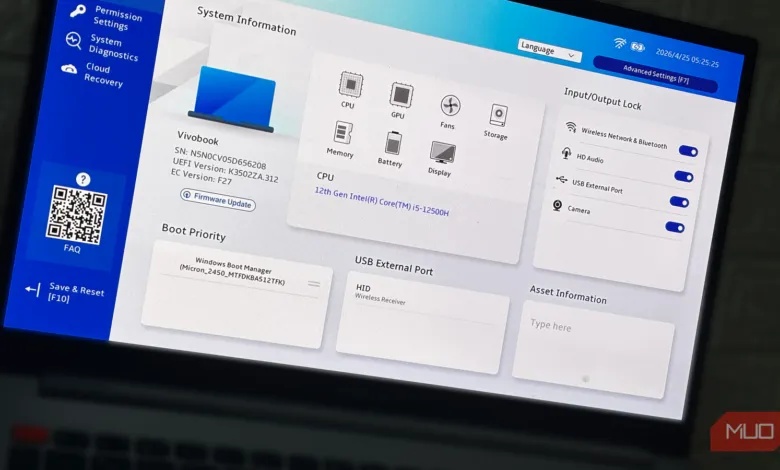
Enabling XMP requires a trip to the BIOS. Restart your PC and press the key indicated on screen during boot (commonly Delete, F2, F10, or F12). Once inside, the interface varies by motherboard. Newer boards often open in EZ Mode, where XMP is a simple button or toggle. If you see Advanced Mode, look for tabs like AI Tweaker, OC, or Tweaker. Find the XMP option and switch it from Disabled to Profile 1. Save and exit (usually F10), then confirm the reboot.
After Windows loads, reopen Task Manager to verify the speed matches your kit’s rating. In rare cases, the system may fail to boot once or twice. Modern BIOSes automatically revert to the safe JEDEC default after repeated failures. If that happens, try the profile again or contact your RAM manufacturer. Once stable for a day or two, you’re done. Just remember that BIOS updates can reset XMP to off, so check your RAM speed after any firmware update. The performance was always there; you just needed to flip the switch.
(Source: MakeUseOf)