Stop Google Maps From Showing Your Home to Strangers
▼ Summary
– Google Maps’ Street View publicly displays high-resolution images of homes, raising privacy concerns for many homeowners.
– Google offers a free, permanent blurring feature for properties, which can be requested to obscure a home from Street View.
– The blurring request must be submitted on a computer via a web browser, as the feature is not available in the iOS or Android app.
– To request blurring, users navigate to their home in Street View, click “Report a Problem,” and position a red box over areas to blur.
– After selecting what to blur (e.g., home, car, face) and providing details, Google reviews the request and confirms via email, with no set processing time.
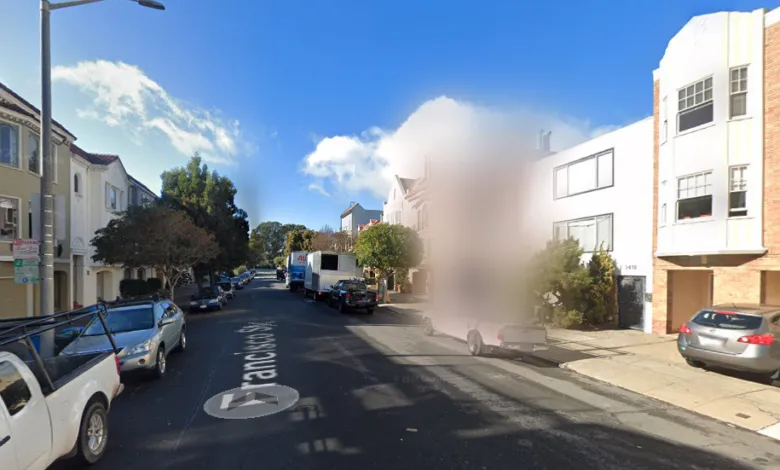
If the thought of strangers seeing a high-resolution image of your front door, windows, driveway, and yard makes you uneasy, you are not alone. Typing almost any residential address into Google Maps and switching to Street View reveals a photograph that captures intimate details of your property. For many homeowners, this level of public accessibility is a significant privacy concern that often flies under the radar. Fortunately, Google offers a free, permanent solution to blur your home from Street View entirely. Once approved, the blurring is irreversible. Here is a straightforward guide to reclaiming your privacy.
You do not have to accept this exposure as an unavoidable reality. By submitting a simple request, you can force Google to censor your home, permanently obscuring it from the platform. This is an effective way to take control of your home’s digital footprint and ensure that your private space is not part of a global, searchable database. The process is surprisingly simple and can be completed in just a few minutes.
To begin, note that the blurring feature is not available on the Google Maps app for iOS or Android. You will need to use a web browser on a computer, ideally a Mac or PC, as the mobile browser version is cumbersome. Start by visiting maps.google.com and entering your home address in the search bar at the top-right. Hit return, then click the photo of your home that appears in the results.
Once the Street View image loads, look for the tiny “Report a Problem” link at the bottom-right corner of the screen. Click it. You will then see a red and black box superimposed over the image. Using your mouse, adjust the view by dragging and zooming in or out with the plus and minus buttons. Position the box so it contains your home and any other elements you wish to obscure, such as cars or landscaping.
After you have framed the area, select what you are requesting to blur from the options provided: A face, Your home, Car/license plate, or A different object. Google will then ask you to provide additional details about what needs blurring, especially if the image is busy with multiple vehicles, people, or objects. Be thorough here, as Google cautions that once a blur is applied, it is permanent and cannot be reversed.
Finally, enter your email address, complete any required captcha verification, and click Submit. Google will send you an email confirming receipt of your report and stating that it will review the request. You may receive follow-up emails asking for more information. The company does not specify a processing time, so simply monitor your inbox for updates. Once approved, your home will be permanently blurred from Street View, giving you peace of mind.
(Source: CNET)