Disable Chrome’s AI Features for a Cleaner Browser

▼ Summary
– You can hide the Gemini button in Chrome by right-clicking it and selecting “Unpin,” and further disable its features in the browser’s AI settings.
– The “AI mode” search button can be disabled by navigating to `chrome://flags` and setting the “AI Mode Omnibox entrypoint” to “Disabled.”
– The “Help me write” feature, which offers AI writing assistance in web forms, can be turned off in Chrome’s settings to stop suggestions.
– “History search, powered by AI” can be disabled in settings to prevent sending browsing history data to Google for content-based searches.
– To avoid AI Overviews in Google search results, you can set Chrome’s default search engine to a custom “Web Only” version that only shows traditional web listings.
Modern web browsers are packed with AI-powered tools, but you have full control over which features are active in your interface. Disabling Chrome’s built-in AI capabilities can streamline your browsing experience and enhance privacy, offering a cleaner, more traditional web navigation tool. The process involves adjusting several settings within the browser.
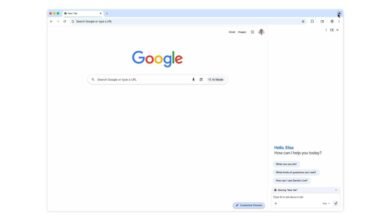
The prominent Gemini button in the top-right corner can be removed by right-clicking it and selecting “Unpin.” This action hides the visual prompt, though the keyboard shortcut to activate Gemini may remain. For a more complete disable, visit `chrome://settings/ai/gemini` and turn off all available switches, including “Show Gemini in system tray and turn on keyboard shortcut” and “Page content sharing.” This prevents content from your tabs from being sent to the AI.
Another feature Google promotes is its AI search mode, accessible via a button on the right side of the Omnibox. This tool provides direct chatbot answers instead of traditional web results. To remove this button entirely, you need to access Chrome’s experimental flags. Navigate to `chrome://flags` and search for “ai mode.” Set the “AI Mode Omnibox entrypoint” flag to “Disabled.” It’s also advisable to enable “AI Entrypoint Disabled on User Input” and disable “Omnibox Allow AI Mode Matches” for thorough deactivation. After changing these flags, restart your browser for the changes to take effect.
Chrome also includes a “Help me write” feature that activates in text fields. To stop the browser from suggesting this tool, go to `chrome://settings/ai/helpMeWrite` and toggle “Offer writing help” to the off position. This ensures you won’t see prompts encouraging you to use AI for composing text.
For privacy-conscious users, disabling “History search, powered by AI” is crucial, as it sends information about your browsing habits to Google. This feature allows searching your history by page content, not just titles. To ensure it is off, navigate to `chrome://settings/ai/historySearch` and turn the single toggle to disabled.
Finally, to avoid AI-generated summaries in your search results, you can modify your default search engine. By default, Chrome’s Omnibox searches Google’s main “All” tab, which often displays an AI Overview at the top. You can configure Chrome to use a custom search that directly accesses Google’s “Web” tab, which filters out AI Overviews and other non-web page results. To do this, go to `chrome://settings/searchEngines` and click “Add” next to Site search. Create a new entry with the following parameters: Name: “Google (Web Only)”; Shortcut: `google.com`; URL: `{google:baseURL}/search?udm=14&q=%s`. After adding it, use the menu next to this new entry to set it as your default search engine. This ensures your queries return only standard web listings.
(Source: The Register)