Master Your ROG Ally Xbox: Essential Setup Tips
▼ Summary
– The article is an updated guide to help new owners of the ROG Xbox Ally or Ally X handheld gaming devices get started quickly.
– It highlights the device’s flexibility, including multiple navigation methods and integrated features like ASUS Command Center within the Game Bar.
– Users can access games from their existing library, PC storefronts, and Xbox services, and are advised on how to prepare for offline play.
– Personalization options are detailed, such as using accessibility features, connecting external controllers, docking to a TV, and customizing joystick lights.
– Owners should regularly check for and install updates via Windows Update and Armoury Crate SE to receive new features and improvements.
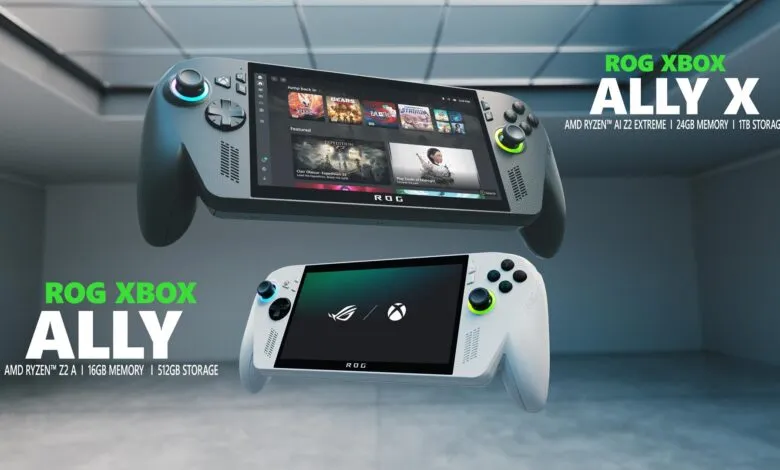
Congratulations on your new ROG Ally or ROG Ally X. This powerful handheld gaming device merges the flexibility of Windows with the streamlined experience of Xbox, creating a versatile platform right in your hands. To help you unlock its full potential from day one, we’ve compiled essential setup advice and customization tips that go beyond the basics.
If you’re in the initial setup phase, consult the official Xbox Support guide for detailed step-by-step instructions. A pro tip during this process: do not skip configuring the fingerprint reader. Using your fingerprint to unlock the device is not only quick but adds a layer of convenient security. Once setup is finished, you’ll be greeted by the immersive, full-screen Xbox dashboard designed specifically for gaming.
Now, let’s dive into some key areas to master.
Efficiently Navigating Your Device
You have multiple input methods at your disposal. Use the directional pad, joysticks, or face buttons to make selections, or simply tap the responsive touchscreen. To open the crucial Game Bar settings menu, press the Xbox button and then tap the right bumper, or swipe inward from the left screen edge. Need to switch between applications? A long press of the Xbox button or an upward swipe from the bottom brings up the Task Switcher for seamless transitions.
Get acquainted with the Command Center, which is now integrated into the Game Bar. This gives you instant access to many advanced features for tuning your experience both in and out of games. For even deeper customization, you can launch the full Armoury Crate SE application directly from this overlay.
Don’t overlook Gaming Copilot (Beta), your personal AI sidekick. It provides game tips, achievement tracking, and strategic advice. Activate it by long-pressing the Command Center button to open its widget within the Game Bar and complete the brief setup. Afterwards, during gameplay, a long press and release of the Library button lets you chat with Copilot for help without leaving your game.
Building and Accessing Your Game Library
Finding games is straightforward. Press the dedicated Library button above the right thumbstick to browse titles you own, your Game Pass catalog, and games available through Xbox Cloud Gaming. A useful trick: you can select multiple categories simultaneously. Highlighting both “Owned” and “Installable” lets you shop your existing library for games that run natively on the Ally. For new purchases, the Store is accessible from the left navigation rail.
The device excels at aggregating your PC libraries. To see all your games from platforms like Steam or Epic in one place, go to the My Apps tab in your Library and select the PC storefront you wish to install. If a launcher isn’t listed, open the Edge browser (also in My Apps), visit the store’s website, and download it directly.
Embrace the freedom of offline play. While online features enhance many titles, most single-player games run perfectly without an internet connection. Before you travel, test your games offline, pre-download any updates or DLC, and ensure you’re signed in. For a comprehensive guide, search for “Play games in offline mode on Windows” on Xbox Support. Remember to use airplane mode during flights to conserve battery.
Tailoring the Experience to Your Preferences
The Ally brings robust accessibility features from Xbox consoles and Windows 11 to a handheld form. Most visual, cognitive, and sensory settings are found by selecting the Profile & Settings icon in the top-left corner, then navigating to Settings > Accessibility. For input customization, including button remapping and on-screen keyboard options, you’ll need to open Armoury Crate SE.
You can easily connect external Xbox Wireless Controllers. Turn on the controller, hold its Pair button, and watch for the connection notification on your Ally. If you miss it, open the Game Bar, go to Settings > Bluetooth > Manage devices, choose “Add device,” and follow the prompts.
Here’s a clever bonus: check inside the lid of your device’s box for a lightweight, sturdy cardboard stand. It’s perfect for propping up your Ally while it charges or when you’re using an external controller, keeping the screen visible.
When you’re home, connect your Ally to a TV or monitor for a big-screen experience. Use the USB-C port to connect directly to a display or to a docking station. For the best performance, set the display mode to “Second Screen Only” to match your TV’s native resolution and refresh rate.
The colorful LED rings around the joysticks are a signature look, but you might want to dim them in a dark room or on a plane. To adjust them, open Armoury Crate SE, select the Lighting section, and modify their behavior or turn them off completely.
Keeping Your System Current
Your device will improve over time with software updates. Recent enhancements include Default Game Profiles (Preview) that auto-optimize frame rate and power usage for numerous supported titles, and Game Save Sync Indicators for real-time cloud save confirmation. To ensure you have all the latest features and fixes, regularly check two key areas:
For Windows OS updates: Open the Game Bar, select the Settings widget, choose “More Settings” to open Windows Settings, and navigate to Windows Update. Install all available updates and restart when prompted.
For Armoury Crate SE updates: Open the Command Center, select “Open Armoury Crate SE,” go to the Update Center, and select “Check for Updates,” then “Update All.”
With these tips, you’re well-equipped to enjoy everything your ROG Ally has to offer, from portable sessions to docked gameplay on the big screen.
(Source: XBOX news)