I tried a secret Android Auto feature Google won’t promote
▼ Summary
– Android Auto can be made more useful by sideloading third-party apps beyond what Google officially provides.
– The process involves enabling Developer Mode on the phone and Android Auto, then installing the AAAD app from GitHub.
– AAAD acts as an unofficial store for Android Auto apps, with a free version limited to one install per 30 days and a $4 Pro version.
– Third-party apps like CarStream, AAMirror, and Fermata Auto enable YouTube, screen mirroring, and web browsing on the car’s display.
– Sideloading is not recommended for most users due to driving distractions, risk of Google patching the method, and potential compatibility issues.
I had never given much thought to Android Auto beyond its basic functions. To me, it was just a glorified navigation screen paired with a music player. Sure, it could read my messages or handle a quick Google Meet call, but that always felt like the ceiling of what Google intended. Whatever features the company enabled, that was the deal.
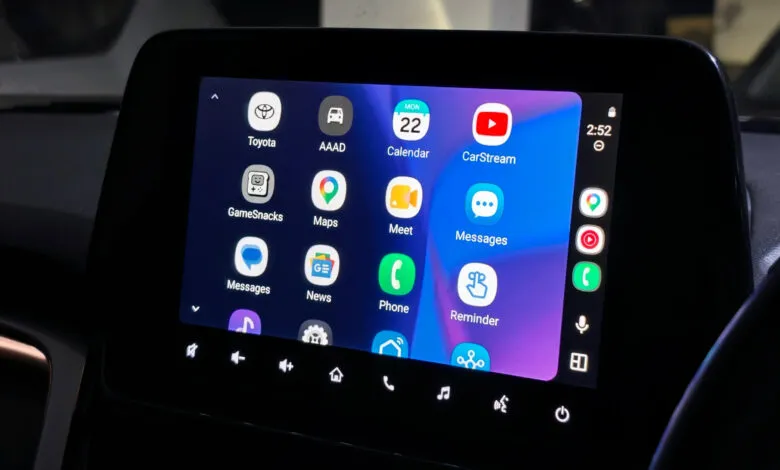
But I recently discovered that assumption was wrong. The platform is actually capable of far more than what Google officially allows. You can go beyond the stock experience and even install third-party apps from outside the Google Play Store. Google places strict limitations on Android Auto, but with a bit of tinkering, you can unlock a much more powerful version of it. Here’s how to sideload apps onto Android Auto and make it significantly more useful than the default setup.
I had no idea sideloading was even possible, but the process is surprisingly simple. Most of us have only ever used the apps Google ships with Android Auto: YouTube Music, Spotify, Google Maps, the phone dialer, and so on. But I bet you’ve also wished you could pull up a YouTube video or stream a show while stuck in traffic.
It turns out you can. You don’t need to root your phone or jump through any overly complex hoops. The entire process breaks down into three straightforward steps.
First, enable Developer Mode on your Android phone. Go to Settings, tap About Phone, and hit the build number seven times. You’ll see a confirmation that Developer Settings are now active.
Next, unlock Developer Mode specifically for Android Auto. Open Settings, go to Apps, and select Android Auto. On its app info page, tap Additional settings. Scroll all the way down to the Version and permissions info section and tap it ten times. A toast notification will confirm Developer Mode is now active for Android Auto. Tap the three-dot menu in the top right, select Developer Settings, scroll to the bottom, and enable Unknown Sources.
The final step is installing Android Auto Apps Downloader (AAAD). This app acts as an unofficial storefront for third-party Android Auto apps. Since it’s not available on the Google Play Store, you’ll need to download the APK from the developer’s GitHub releases page and install it manually. Be aware that Google Pixel, OnePlus, Realme, and Oppo devices have known issues, and the developer provides a separate fix for those. You may also need to allow installation from unknown sources on your phone.
Once AAAD is installed, open it and follow the setup process. You’ll need to grant permissions for unknown app installation, notifications, and disabling Google Play Protect. The free version limits you to one app every 30 days, so you’ll likely want the Pro version, which costs a one-time payment of $4 and unlocks unlimited downloads.
With AAAD, Android Auto suddenly becomes far more capable than I ever expected. One of the best apps is CarStream, which lets you watch YouTube videos on your car’s screen. Google is bringing native YouTube streaming to Android Auto in supported cars from BMW, Ford, Hyundai, Kia, Mercedes-Benz, and others later this year, but that feature will only work when the car is parked. CarStream works even while driving (which you shouldn’t do, of course), and the interface is easy to navigate using your phone. You can sign in with your Google account to access YouTube Premium features.
Another useful app is AAMirror, which mirrors your Android phone’s screen directly onto your car’s dashboard. That might sound unnecessary, but it’s handy for playing locally saved videos or streaming content from a web browser.
If I had to pick just one app from the third-party store, it would be Fermata Auto. It’s an all-in-one multimedia app that covers everything: streaming YouTube, playing local videos, screen mirroring, watching TV via IPTV links, and even running a web browser on Android Auto. Through that browser, you can access services like Prime Video and Netflix directly on your car’s screen.
So, is this something you should actually try? Probably not. There’s a reason Google doesn’t officially allow most of these apps. They can be distracting, and watching videos or browsing the web while driving is a terrible idea. There’s no real argument around that.
Finding out that Android Auto can run YouTube, a web browser, and screen mirroring completely changed how I view my car’s display. But honestly, most people are perfectly fine using Android Auto exactly as Google intended: maps, music, calls, messages, and that’s about it. Most people should probably never install these apps. That doesn’t make them any less fascinating.
It’s also worth noting that Google regularly patches sideloading on Android Auto. If you pay for AAAD, it might stop working before you get much use out of it. There’s also a 50-50 chance that a recent Android update on your phone has already patched things out, preventing any of this from working at all.
So to be clear: sideloading apps on Android Auto is possible, but I wouldn’t recommend it for most people. It’s a fun thing to know about, but probably best left as just that.
(Source: Android Authority)