How I Removed Samsung’s Bloatware and Unlocked My Phone’s Speed
▼ Summary
– A hidden “auto-install over Wi-Fi” toggle in the Galaxy Store was installing unwanted apps on the user’s Samsung phone by default.
– The user disabled bloatware like Bixby, Galaxy Store, Samsung Free, and carrier apps using Android SDK Platform Tools for a permanent fix.
– Preinstalled Microsoft apps (Outlook, LinkedIn, Microsoft 365) were removed as duplicates since the user prefers Google’s ecosystem.
– Apps like OneDrive, Knox Security, Samsung Keyboard, and Samsung Notes were kept because they integrate well with Samsung’s hardware or features.
– Removing bloatware improved battery life, reduced mobile data usage, stopped random app installs, and made the app drawer cleaner.
Not long ago, I noticed my mid-range Samsung phone was quietly filling up with apps I never downloaded. New games, random shopping tools, and extra gallery applications kept appearing in my app drawer, all without my permission.
The source of this unwanted activity was the Galaxy Store. Buried in its hamburger menu is a setting labeled “auto-install over Wi-Fi,” and on my device, it was enabled by default. I quickly force-stopped the Galaxy Store, cleared its data, and disabled both the auto-update and auto-install toggles. Once I did, the rogue installations stopped, and the storage and background data they had been consuming were finally freed.
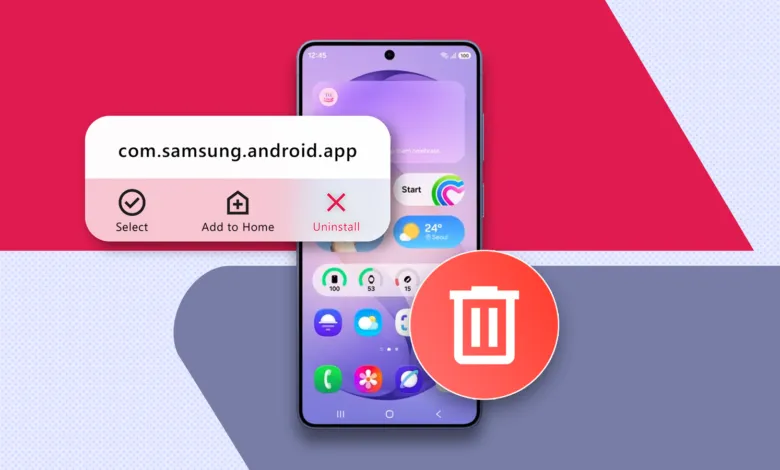
That experience got me thinking about all the other apps running in the background without my knowledge. A quick glance at my battery usage revealed the full scope of the problem. I knew how to disable most Samsung bloatware through the Settings menu, but I wanted a more permanent solution. So I loaded up Android SDK Platform Tools and got to work.
The Samsung apps I cleared out
Bixby was the first to go. I never used it, having long since committed to Google Assistant and later Gemini. Meanwhile, Bixby Services had been quietly draining my battery.
Next came the Galaxy Store. I don’t know a single person who uses it for anything beyond occasionally trying a font or updating other Samsung apps. After the auto-install fiasco, there was no reason to keep it.
I also removed T-Mobile’s Mobile Services Manager. My phone originally shipped on T-Mobile, and even after I switched carriers and unlocked the device, those carrier apps lingered. MSM behaves just like the Galaxy Store, silently fetching carrier-branded apps and diagnostics. Switching networks couldn’t remove it, but ADB could.
I was pleasantly surprised to find I could delete Samsung Free. When enabled, it lives on a panel one swipe left of the home screen and pulls content in the background whether you open it or not. I’ve accidentally swiped into it far more often than I’ve used it on purpose.
AR Zone and Samsung TV Plus went too. TV Plus is a reasonable app for those who want free, ad-supported streaming, but that’s not me. As for AR Zone, I had no idea what it did before looking it up, and I wasn’t interested in finding out. I also cleared out a handful of smaller Samsung services I didn’t recognize; their package names made it clear they were tied to features I never used.
Microsoft’s productivity suite
Samsung has a partnership with Microsoft that ships Outlook, LinkedIn, Microsoft 365, and a few other apps preinstalled on Galaxy devices. I’m a Google ecosystem user, and even if I weren’t, I don’t want two productivity suites competing for space on the same phone. These apps aren’t tied to system features the way OneDrive is, so removing them was a no-brainer. There’s no good reason for them to come preinstalled. The Play Store handles app discovery just fine, and Samsung’s own setup screen already offers a list of optional installs where these could live instead.
What I didn’t remove
Some preinstalled apps actually earn their place. OneDrive stayed because Samsung’s Gallery app uses it as the default backup, and Gallery is tied to Camera and other features. Replacing that integration with Google Photos wasn’t worth the effort, especially since OneDrive doesn’t misbehave in the background.
Knox Security also stayed. It’s a great example of what a preinstalled app should be: it works, has clear integrations, and enough people use it to justify its inclusion.
I kept Samsung Keyboard because Gboard isn’t necessarily the better option on a Samsung phone. Samsung’s keyboard handles split-screen and certain One UI gestures more reliably, and its prediction quality is quite close to Gboard’s. Samsung Notes stayed too, because its handwriting support is genuinely excellent, and the S Pen integration on compatible models is unmatched by anything Google ships.
The rule is simple: when a preinstalled app does something specific to the hardware or ecosystem that no third party can match, it earns its spot. When it’s a duplicate or a background service for a feature I don’t use, it doesn’t.
My phone feels new again
The performance improvements I was hoping for showed up exactly where I expected them: behind the bloatware that came with the phone. The Battery panel got shorter, and Bixby Services dropped out of the rankings entirely, along with the other background services I cleared. My phone now lasts a full day on a charge and still has power to spare.
More importantly, I stopped hunting through Storage looking for random downloads to clear. Before the Galaxy Store fix, new apps popped up in the drawer every few weeks. I also noticed that my mobile data usage dropped considerably. Galaxy Store auto-installs were running on cellular, not just Wi-Fi, depending on the toggle setting. Removing that saved a chunk of monthly data I didn’t realize I was losing.
Finally, my app drawer just looks better. That’s purely cosmetic, but I like the feeling of knowing my phone is lightweight and that random apps aren’t running amok in the background.
Half an hour, one USB cable
The entire effort took half an hour and a single USB cable. Next time I get a Samsung upgrade, I’ll probably try wireless ADB to skip the cable step entirely. The lesson here is that the phone could have shipped this way. Samsung knows which apps the average user never opens, and a “skip these” toggle at setup would solve most of the problem for most people. Until that exists, ADB is the workaround.
(Source: Android Police)