Unlock AirTag’s Best Feature on Your Apple Watch: Setup Guide
▼ Summary
– The AirTag 2’s key improvement is expanding its Precision Finding feature to the Apple Watch for the first time.
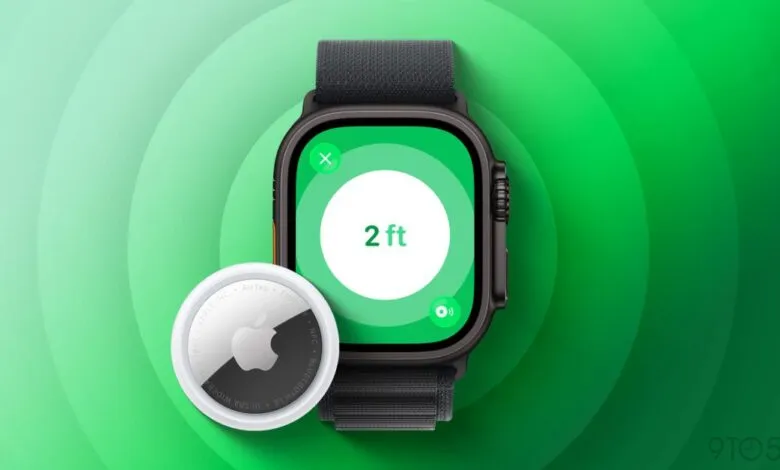
– Precision Finding uses haptic, visual, and audio cues to guide users directly to a lost item, now from 1.5x farther away than the original model.
– To use Precision Finding on the watch, you must access it via Control Center, not the Find Items app, which the article notes is not intuitive.
– The setup requires specific hardware: an AirTag 2 and an Apple Watch Series 9/Ultra 2 or later, along with watchOS 26.2.1 or later.
– Once configured in Control Center, the feature displays a custom icon (like a backpack) matching the item the AirTag is attached to.
Finding lost items just got a whole lot easier, especially if you’re an Apple Watch user. The latest AirTag 2 brings its most powerful feature, Precision Finding, directly to your wrist for the first time. This guide walks you through the simple, though not entirely obvious, setup process to get you tracking in no time.
The standout upgrade in AirTag 2 is the extension of Precision Finding to compatible Apple Watch models. This feature provides precise, step-by-step guidance using a combination of haptic vibrations, visual cues, and sound to lead you right to a misplaced item. The new model also boasts an improved range, allowing the tracking to initiate from roughly 1.5 times farther away than the original AirTag. While the core Find Items app on the watch is your go-to for general tracking, activating Precision Finding requires a quick detour to the Control Center.
Setting up this feature is straightforward once you know where to look. Begin by pressing the side button on your Apple Watch to open Control Center. Scroll to the very bottom and select the ‘Edit’ option. Tap the ‘+’ icon in the top-left corner, then scroll down the list until you find ‘Find Items.’ Select ‘Find AirTag’ and follow the prompts to add your specific item to the Control Center. Once added, it will display a custom icon representing the item it’s attached to, such as a backpack, keys, or a wallet.
There are specific requirements to use this functionality. For hardware, you will need an AirTag 2 paired with either an Apple Watch Series 9 or a later model, or an Apple Watch Ultra 2 or later. On the software side, your watch must be running watchOS 26.2.1 or a more recent version. Having instant access to Precision Finding from the Control Center is incredibly convenient for quick searches. The automatic icon assignment is a thoughtful touch that makes identifying items at a glance simple. While it would be helpful to have this feature integrated directly within the Find Items app, the current setup offers a powerful and efficient way to locate your belongings directly from your wrist.
(Source: 9to5 Mac)