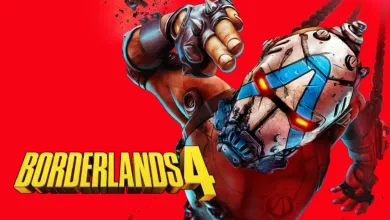
Borderlands 4: What We Know and Expect
▼ Summary
– Borderlands 4’s new Photo Mode, introduced in a January 29 update, allows players to capture and share in-game moments from the planet Kairos.
– Photo Mode is accessed via the pause menu and offers extensive camera and visual effect controls, pausing the world in single-player but not in online multiplayer.
– Saved photos are captured using the platform’s native screenshot function and are not stored within the game itself, requiring use of system folders or sharing tools.
– The mode includes adjustable settings for lens, depth of field, screen effects, gameplay elements like character visibility, and stylistic filters or overlays.
– Photo Mode is unavailable during cutscenes and in splitscreen console play, but players are encouraged to share their captures on social media and the Steam Community hub.
The latest major update for Borderlands 4 introduces a highly requested feature: a robust Photo Mode. This new tool allows every Vault Hunter to freeze the chaotic action or frame the stunning vistas of Kairos, creating perfect screenshots to share with the community. Accessible directly from the pause menu, this system offers deep creative control, letting you compose and stylize your in-game memories before saving them through your platform’s native capture functions.
Activating Photo Mode is straightforward. During any gameplay session, simply open the pause menu and select the new Photo Mode option. Once active, you can move the camera freely using your standard movement controls. The interface is organized into several tabs, each packed with settings to alter the visual composition and style of your shot. In single-player, the action pauses by default when you enter Photo Mode, giving you all the time you need to get everything just right. You can then unpause the world to capture a specific moment before pausing it again. For those playing online cooperatively, the feature still works, but the game world continues in real-time while you frame your shot.
Saving your masterpiece is handled by your system’s standard screenshot command. On a PC, this typically means pressing F12, Print Screen, or using a tool like the Snipping Tool. PlayStation 5 users will press the Share button, while Xbox Series X|S players use the Capture button. It’s important to remember that Photo Mode cannot be used during cutscenes or in console splitscreen play. The images are not stored within the game itself; instead, they are saved to your platform’s designated screenshots folder. On Steam, for instance, you can find your captures by visiting the “Recordings and Screenshots” tab in your Borderlands 4 library menu. The developers encourage players to share their best shots by tagging the official Borderlands social media accounts or uploading them to the Borderlands 4 Steam Community hub.
The true power of this feature lies in its extensive customization options. The Lens Settings tab lets you adjust the Field of View for wide landscapes or tight close-ups and rotate the camera’s angle. For artistic focus, the Depth of Field settings allow you to blur the foreground or background, with controls for focus distance, region, and intensity.
To perfect the image’s base look, the Screen Settings provide sliders for Brightness, Contrast, Saturation, and Gain. The Gameplay Settings offer unique tools for controlling the scene itself: you can shift the Time of Day for ideal lighting and choose to hide other players, damage numbers, summoned creatures, or NPCs to declutter the frame. This is especially useful in multiplayer to prevent other Vault Hunters from photobombing your perfect shot.
For a finishing touch, the Overlay Settings let you add an official Borderlands 4 logo or Vault symbol in various positions, along with cinematic letterboxing in multiple colors. The Film Settings are where you can apply dramatic visual filters, from styles like “Cinematic” and “Jakobs Authentic” to more wild options like “Acid Funk” or “Sexwash,” complete with adjustable intensity and film grain. Finally, Vignette Settings enable you to darken the edges of the frame to draw the eye, and you can add lens effects like Bloom, Chromatic Aberration, and Lens Flare for extra polish.
(Source: 2k.com)