DuckDuckGo’s free YouTube ad blocker: How it works
▼ Summary
– DuckDuckGo’s browser offers free YouTube ad blocking, enabled by default on Mac, Windows, and iPhone, while Android users must manually toggle the setting on.
– The author tested the ad blocker across multiple videos and devices, experiencing no ads and no extra buffering, despite initial skepticism.
– DuckDuckGo’s ad blocking uses community-maintained filter lists from uBlock Origin, with additional tweaks to improve compatibility.
– A bonus feature called Duck Player uses a private video player that prevents tracking and personalized ads, and works alongside the ad blocker.
– The ad blocker allowed the author to avoid YouTube Premium’s subscription cost, providing a seamless, ad-free experience on all tested devices.
You’re deep into a YouTube video, fully focused, when an ad suddenly crashes the moment. It’s the kind of interruption that happens dozens of times a day, and I’d rather spend a few minutes installing an ad blocker than shell out for YouTube Premium. The catch? YouTube has been cracking down hard on ad blockers, showing warnings or even refusing to play videos entirely. I was almost ready to give in, until I stumbled across DuckDuckGo’s new free YouTube ad blocker. I tried it, and it actually worked.
If you’re tired of YouTube nagging you about ad blockers, here’s how to set it up on your device.
How to block YouTube ads with DuckDuckGo
Before I share my experience, let’s get you set up. If you’re on a Mac, Windows PC, or iPhone, you’re in luck. YouTube ad blocking is enabled by default in the latest version of the DuckDuckGo browser. Just update the app, open YouTube, and start watching. No configuration needed.
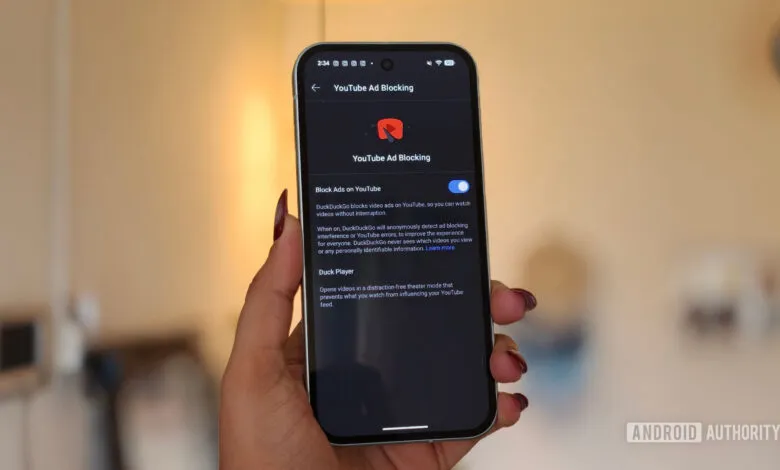
Android users have one extra step. DuckDuckGo says YouTube ad blocking will be enabled by default on Android “soon,” but for now, you’ll need to turn it on manually. Update the app, then open DuckDuckGo on your phone. Tap the three-line menu (hamburger icon) in the top-right corner, go to Settings, scroll to Other Settings, and select YouTube ad-blocking. Toggle the Block Ads on YouTube switch on. That’s it. Open YouTube in the DuckDuckGo browser and enjoy ad-free videos.
This wasn’t supposed to work so smoothly
I followed those steps on my Google Pixel 10a, and the whole process took less than a minute. I was skeptical. I’ve tried enough workarounds to know most stop working eventually, so I kept my expectations low.
But I had to test it. I played a one-hour episode of a favorite YouTube show. I hit play and watched. Not a single ad from start to finish. It felt strange, almost surreal, because I’m so used to interruptions that I kept expecting an ad to pop up. It never did.
I kept going. Music videos, podcasts, long documentaries, cooking videos, anything I’d normally watch , all ran smoothly. DuckDuckGo warns you might notice extra buffering, but I didn’t experience any. On my iPhone, MacBook, and Windows PC, it was even simpler since ad blocking is enabled by default. I ended up spending far more time on YouTube than planned, partly to test it and partly because, for once, I wasn’t constantly pulled out of the experience by ads.
A bonus feature worth knowing about
While exploring the browser, I found another feature: Duck Player. Instead of opening videos in the regular YouTube player, Duck Player uses DuckDuckGo’s own built-in player. The big advantage is privacy. It uses YouTube’s strictest privacy settings for embedded videos, so you aren’t tracked with cookies or served personalized ads. Videos watched in Duck Player won’t influence your YouTube recommendations, and it won’t remember your place in playlists.
Duck Player and YouTube ad blocking work together, giving you a cleaner, more private experience without sacrificing either feature. You can enable it from the browser’s settings.
How is DuckDuckGo getting away with this?
Given YouTube’s aggressive crackdown on ad blockers, I wondered how DuckDuckGo pulls this off. The answer: community-maintained filter lists from uBlock Origin, constantly updated by an active open-source community to keep pace with YouTube’s ad-serving methods. DuckDuckGo also applies its own tweaks for compatibility and smooth performance.
My only hope is that it stays this way. Right now, it’s exactly what I needed. I don’t have to add another monthly subscription, and after using it across my Pixel, iPhone, MacBook, and Windows PC, I genuinely don’t miss YouTube’s constant ad interruptions. If you’re in the same boat, I’d recommend giving it a try.
(Source: Android Authority)