How to Change Your Gmail Username
▼ Summary
– Gmail users in the US can now change the username portion of their email address.
– The old email address will remain as an alternate, so messages sent to it will still arrive.
– Users can only create one new email address per year.
– The new username cannot be used for a separate Google Account in the future.
– After changing the address, users may need to update their login information on other apps and websites.
For many, an outdated or embarrassing Gmail address has felt like a permanent digital tattoo. That era is officially over for users in the United States. Google has now fully rolled out a feature allowing you to change the local part of your email address, the text that comes before the “@gmail.com” domain. This long-awaited functionality provides a fresh start without losing your existing account history.
When you create a new Gmail username, your original email address does not vanish. Instead, it becomes an alternate address linked to your account. All messages sent to your old address will continue to arrive seamlessly in your primary inbox, ensuring you never miss important communications. However, this new freedom comes with specific limitations. Users are permitted to create only one new email address every 12 months, so the choice should be considered carefully. Furthermore, any new username you select cannot be used later to establish a separate, independent Google Account.
This feature began a phased rollout last year and is now available to all Google Account holders in the US. Beyond escaping a cringe-worthy old handle, it serves as a practical tool for individuals updating their contact information after a legal name change. It’s crucial to remember that after the switch, your login credentials for various third-party services will not update automatically. You will likely need to manually update your email address on any apps, websites, or subscription services where you use Gmail to sign in.
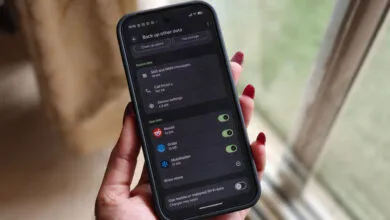
To access this feature, open the Gmail application on your mobile device and tap your profile icon. Navigate to “Manage your Google Account” to enter your settings, then select “Personal info.” Within that menu, choose the “Email” option. Next to your current address, you should see an arrow button. Tapping it should reveal the option to “Change Google Account email.” If you do not see this prompt, it is likely because you have already exercised your one annual change within the last twelve months.
(Source: The Verge)