Windows 11’s ‘Faster’ File Explorer Actually Slower Than Windows 10
▼ Summary
– Microsoft is testing background preloading of File Explorer in Windows 11 to improve launch performance by pre-caching it before user requests.
– Testing revealed that preloading uses about 35MB of additional RAM but results in noticeably faster File Explorer launches, especially under full system load.
– Despite faster launches, preloading does not address other performance issues like the slow-loading context menu, which remains sluggish.
– Windows 11’s File Explorer is slower than Windows 10’s due to the overlay of modern WinUI/XAML elements on the legacy Win32 core, adding rendering layers.
– Users can manually improve launch speed by disabling visual effects or setting File Explorer to open directly to “This PC,” bypassing the slow Home page.
Microsoft is currently trialing a background preloading feature for Windows 11’s File Explorer, intended to speed up its launch time. This approach follows persistent feedback from users who find the current version noticeably slower than the snappier File Explorer in Windows 10. Rather than rewriting the underlying code, Microsoft is attempting to improve performance by having the system load File Explorer into memory ahead of time.
The concept of preloading, or pre-caching, involves loading an application’s resources before a user actually opens it. This technique isn’t new for Microsoft; similar strategies were used with the Office Startup Assistant in Office 95 and more recently with Startup Boost for the Edge browser. The goal is to deliver near-instant access by pulling the application from local memory instead of loading it from scratch.
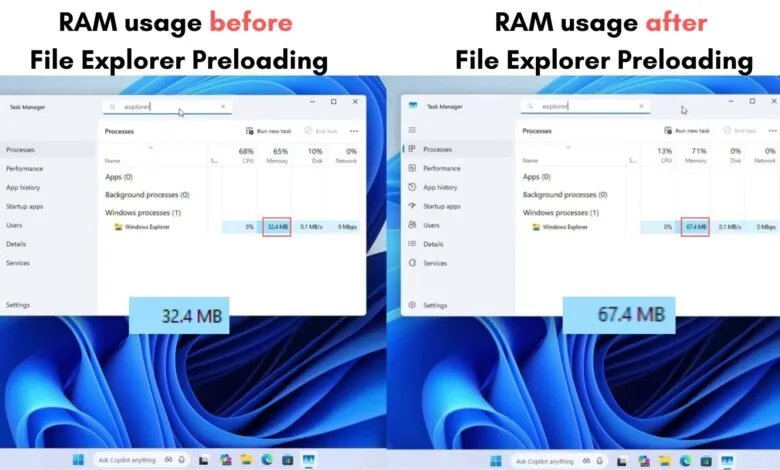
Testing was conducted to measure the real-world impact of this feature. On a system with 4GB of RAM, File Explorer used approximately 32.4MB before preloading was enabled. After activating the feature, an additional 35MB was used in the background, bringing total RAM usage to about 67.4MB. While this extra memory use is minimal and won’t slow down most modern PCs, the important question is whether it translates to a faster launch experience.
In tests with no other applications running, the difference in launch speed was subtle, only visible when footage was slowed to 0.25x. However, under a full system load, such as having 16 Edge tabs open, the preloaded File Explorer opened visibly faster. The feature does deliver on its promise of quicker launch times, especially when system resources are stretched.
Despite the faster launch, preloading does not resolve other performance issues. File Explorer still feels sluggish in daily use, particularly when opening the context menu. Even with the latest Insider Build upgrades, options like “Ask Copilot” and “Edit with Clipchamp” load slowly, dragging down the overall user experience.
There are a few workarounds users can apply for a more responsive feel. Disabling transparency and animation effects in Settings > Accessibility > Visual effects can help. Another effective tweak is changing the default File Explorer opening location to “This PC” instead of the Home page, which tends to load more slowly. This adjustment alone can make File Explorer feel significantly faster.
So why does Windows 10’s File Explorer still outperform Windows 11’s? Both rely on the same core Win32/COM foundation, but Windows 11 overlays modern WinUI/XAML elements on top of this legacy base. This additional rendering layer introduces overhead, which can slow down responsiveness. In a side-by-side comparison, Windows 10’s File Explorer, even on a device with only 2GB RAM, opens faster and displays context menus more quickly than Windows 11’s, preloading notwithstanding.
Third-party file managers like File Pilot, still in beta, demonstrate that better optimization is possible. File Pilot launches faster than Microsoft’s preloaded File Explorer and displays context menus almost instantly, even with the same “smart” actions.
For those eager to test the preloading feature, it is available in Windows 11 Insider Preview Build 26220.7271 on the Dev or Beta channels. It can be disabled via File Explorer Options under the View tab by toggling off “Enable window preloading for faster launch times.” The feature is expected to reach all users by early 2026, though Microsoft has not announced plans for deeper optimizations to address the broader sluggishness in Windows 11’s File Explorer.
(Source: Windows Latest)