Microsoft 365 PowerPoint Tips & Tricks Cheat Sheet

▼ Summary
– Colored icons identify collaborators in a document, allowing real-time visibility of comments and edits made by all users.
– Users can make threaded comments by right-clicking and using the Comments pane, with @mentions notifying specific coworkers via email.
– Real-time collaboration performance depends on internet connection strength, with slower connections causing delays in updates.
– Microsoft 365 Copilot can generate presentations from scratch or critique existing ones, though prompt refinement is often needed for desired results.
– AutoSave and Version History features enhance file safety, enabling automatic saves and restoration of previous document versions.
Microsoft 365 PowerPoint offers powerful collaboration tools and AI-driven features to streamline presentation creation. Whether working with a team or crafting slides solo, these tips can help you work smarter and faster.
Real-time collaboration in PowerPoint lets multiple users edit simultaneously, with color-coded icons showing who’s working where. Comments can be added by right-clicking any slide element and selecting Comment, opening a sidebar for threaded discussions. Tagging teammates with @mentions ensures they receive email notifications, keeping feedback organized. However, a stable internet connection is crucial, delays may occur if connectivity is weak.
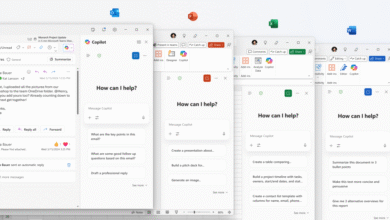
For those with a Microsoft 365 Copilot subscription, AI can generate entire presentations from scratch. Click Create with Copilot on the home screen, describe your topic in detail (within the 2,000-character limit), and select a design template. Copilot drafts an outline first, edit the prompt if adjustments are needed before generating slides. While useful, results may require refinement, especially for slide count accuracy.
Copilot can also analyze existing documents to build presentations, though this feature can be inconsistent. If direct file linking fails, pasting text manually or using Copilot outside PowerPoint may work as a workaround. Additionally, design suggestions are available, ask Copilot for style improvements, slide critiques, or professional refinements.
Some older PowerPoint features, like Smart Lookup, have been replaced by Copilot, requiring a paid business subscription for full access. Meanwhile, AutoSave ensures real-time backups for files stored in OneDrive or SharePoint, preventing data loss. Unlike AutoRecover, which only saves periodically, AutoSave continuously updates, though users should Save a Copy instead of Save As to avoid overwriting originals.
Version History allows reverting to earlier drafts, click the file name at the top and select Version History to browse or restore past iterations. This pairs well with AutoSave for maximum flexibility.
Other helpful tools include:
- 3D models (Insert > 3D Models) for dynamic visuals
- Text highlighting (Home > Text Highlight Color) to emphasize key points
- Background removal (Picture Format > Remove Background) for cleaner images
- Royalty-free stock images (Insert > Pictures > Stock Images)
- Bluetooth pen controls for navigating slides hands-free
- Presentation recording (Record > Export) to share pre-recorded talks
Keyboard shortcuts like Ctrl+M (new slide) and Ctrl+L (laser pointer) speed up workflow. For more efficiency hacks, explore additional Microsoft 365 guides.
Originally published February 2021 | Updated August 2025
(Source: Computer World)