5 iPhone Lock Screen Customizations to Upgrade Your Look
▼ Summary
– Apple has progressively enhanced iPhone Lock Screen customization, evolving from simple wallpaper changes to complex widget integration.
– The iOS 18 update marked a significant shift by introducing widgets and filters to both the Home Screen and Control Center alongside lock screen refinements.
– iOS 26 introduced the Liquid Glass design language, providing a major visual overhaul for the iPhone software interface.
– Recent updates like iOS 27 include new Siri AI capabilities and further clock and widget customization options for users.
– The article outlines various methods to personalize the iPhone Lock Screen, highlighting features like animated album covers and Live Activities in the Dynamic Island.
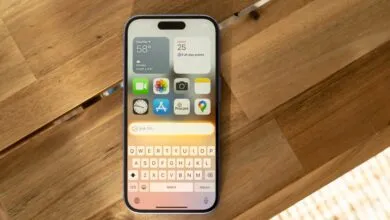
Apple has progressively expanded the scope of iPhone Lock Screen customization over recent years. What began as simple wallpaper adjustments has evolved into a sophisticated system involving widgets, font changes, color filters, and dynamic elements like Live Activities. The latest iOS 27 update, which introduces the new Siri AI, further enhances these capabilities by offering additional options for clock styles and widget configurations. This allows users to create a unique interface that reflects their personal style.
The foundation for this level of control was laid with iOS 18. Although many anticipated the immediate release of comprehensive Apple Intelligence features at that time, the operating system primarily focused on UI flexibility. It introduced lock screen widgets, visual filters, and alternative fonts, while also extending similar customization options to the Home Screen and Control Center. Subsequent updates refined these tools, ensuring the lock screen remained a focal point for personal expression.
With the arrival of iOS 26, Apple implemented the Liquid Glass design language, providing a significant visual overhaul to the entire software ecosystem. By 2026, these enhancements included animated album covers from Apple Music directly on the lock screen and the ability to display up to three Live Activities within the Dynamic Island. Navigating this rapid evolution can be challenging, but focusing on key modifications can significantly elevate the device’s appearance.
Personalizing Clock Styles and Colors
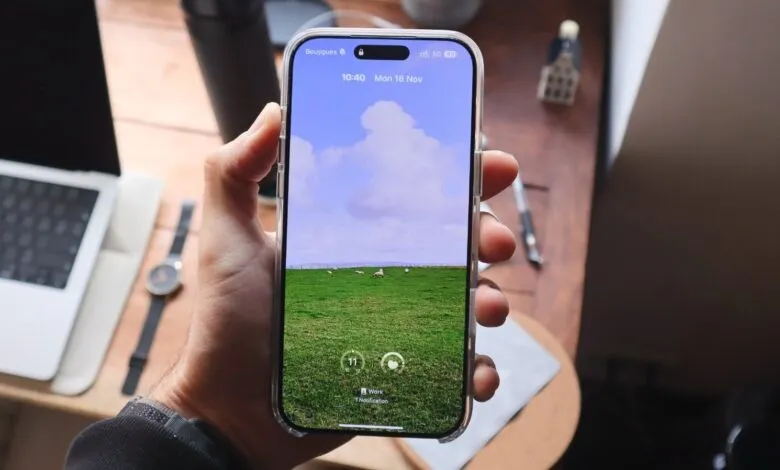
One of the most impactful changes involves modifying the clock face. Users are no longer limited to standard digital or analog displays. The ability to change clock fonts allows for a distinct aesthetic, ranging from bold, modern typefaces to more classic serif designs. Additionally, applying color filters to the clock ensures it harmonizes with the chosen wallpaper, creating a cohesive look rather than a disjointed one. These adjustments are straightforward to implement through the lock screen editing menu, where users can tap the clock area to access a variety of styles.
Integrating Widgets for Functionality
Beyond aesthetics, widgets transform the lock screen into a functional dashboard. Instead of unlocking the phone to check notifications, weather, or calendar events, users can view essential information at a glance. The current system supports multiple widgets, enabling users to prioritize what matters most. Whether displaying upcoming meetings, tracking fitness goals, or monitoring stock prices, these components add utility without cluttering the interface. Proper placement ensures that critical data remains visible while maintaining a clean visual hierarchy.
Leveraging Live Activities and Dynamic Island
For real-time updates, Live Activities offer an interactive layer to the lock screen experience. These activities provide ongoing status updates for events such as ride-sharing arrivals, food deliveries, or sports scores. With support for up to three simultaneous Live Activities in the Dynamic Island, users can monitor multiple streams of information concurrently. This feature bridges the gap between static lock screens and active app usage, keeping users informed without requiring them to open specific applications. The integration of these activities creates a seamless flow between background processes and user interaction.
Enhancing Visuals with Wallpaper and Filters
The choice of wallpaper remains central to the lock screen’s identity. High-resolution images and artistic illustrations set the tone for the entire device interface. To further personalize this backdrop, users can apply various color filters and effects. These adjustments allow for fine-tuning the brightness, contrast, and hue of the image, ensuring it complements the clock and widgets. Some wallpapers may even include subtle animations or depth effects, adding a dynamic quality that responds to touch or movement. Combining a striking image with complementary filters results in a polished and professional appearance.
(Source: BGR)