This Android Launcher Fixes a Pixel Problem
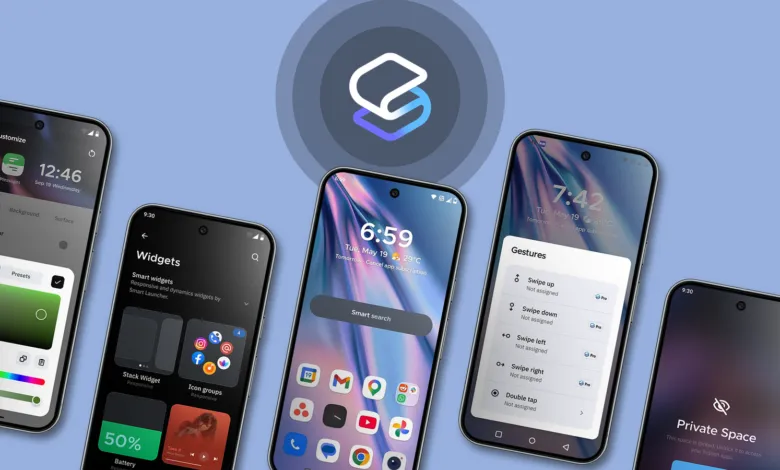
▼ Summary
– Smart Launcher 6 solves the problem of home screen clutter by automatically categorizing apps into groups like Contacts, Internet, Games, Media, and Utilities.
– It balances customization by allowing changes to icon shapes, grids, gestures, and themes without making the interface feel complicated or cluttered.
– The Smart Search feature lets users quickly find apps, contacts, settings, and web results from one place, reducing the need to pin apps to the home screen.
– Gesture shortcuts can be assigned to global actions or individual app icons, such as double-tapping Gmail to compose a new email directly.
– The customizable news feed asks users to choose topics or add RSS feeds upon first swipe, providing a personalized experience without a default layout.
After spending considerable time with the Smart Launcher 6, I’ve discovered a fresh perspective on Android customization that directly addresses a persistent issue I encounter with cleaner launchers like the Pixel Launcher: organization. The more apps, widgets, folders, and notifications I accumulate, the harder it becomes to keep everything tidy. My home screen always starts clean, but inevitably drifts back into chaos. Smart Launcher 6 is the first launcher in a long time that made my phone feel organized without adding complexity.
I’ve always appreciated the minimal aesthetic of the Pixel Launcher, and I’ve tried various third-party launchers to replicate that experience on my OnePlus device. Many either felt overly complicated or prioritized customization so heavily that the interface became cluttered. Smart Launcher 6 takes a different path. In my view, it excels at organization and customization more effectively than the Pixel Launcher.
One standout feature is the app drawer. Instead of a simple alphabetical list, Smart Launcher 6 automatically sorts apps into categories like Contacts, Internet, Games, Media, and Utilities. I can also create custom groups, making navigation much easier when you have dozens of apps installed. Its search system is particularly useful, letting me quickly find apps, contacts, shortcuts, settings, and even web results from one central location. This speeds up daily navigation considerably.
After setting Smart Launcher 6 as your default, long-pressing anywhere on the home screen opens the Settings page. Customization feels practical rather than overwhelming. I can adjust icon shapes, app grid sizes, gestures, folders, and widget layouts without turning my phone into a project. The theme system automatically adapts colors and layouts based on my wallpaper, providing a personalized setup that doesn’t require constant tweaking.
The Smart Search feature functions as a central navigation hub. It’s fast enough that I actually use it instead of endlessly scrolling through my app drawer. This also helps keep my home screen cleaner, since I can reliably search for almost anything in seconds. I no longer need to pin every frequently used app to the home screen, allowing for a simpler layout without sacrificing convenience.
Gesture shortcuts are another time-saver. I can assign double-taps or swipes to tasks like opening the app drawer, launching search, locking the screen, or opening a favorite app. Even more useful, I can assign gestures to individual apps. For example, I set a double-tap on the Gmail icon to directly open the compose email screen instead of launching the main app first.
The personalized news feed is also a welcome addition. The first time I swiped right from the home screen, the launcher asked me to customize my feed rather than forcing a default layout. I can choose from suggested topics or type my own interests into the search bar. Adding more sources later is simple, and Smart Launcher even supports RSS feeds.
After using Smart Launcher 6 for a few weeks, I’ve realized it fixes several small frustrations I had accepted as part of the Android experience. Better app organization, useful gestures, smarter search, and a customizable feed all make the phone easier to navigate. The best part is that it adds these features without making the interface feel complicated. It remains minimal and modern, but gives me far more control over my daily phone usage.
(Source: Android Police)