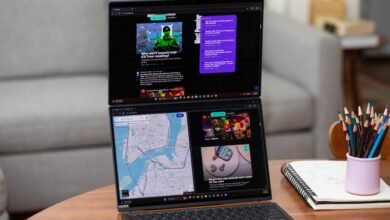
Try Chrome’s New Split Tabs Feature Now in ChromeOS 139

▼ Summary
– Chrome has introduced a new feature allowing users to view two web pages within a single tab by splitting it into resizable sections.
– This feature supports multitasking by enabling easy resizing, swapping tabs, opening links between panes, and separating them back into individual tabs.
– It includes a menu icon near the URL bar for quick access to split, close, and swap functions, enhancing usability and organization.
– The tool is ideal for tasks like research, comparisons, and referencing, reducing clutter from multiple windows.
– Users can enable it via ChromeOS 139 by accessing chrome://flags, searching for #side-by-side, enabling the flag, and restarting the browser.
A few months ago, we shared news about an exciting productivity tool in development for Chrome, a feature that promised to let users view two different web pages inside a single browser tab. At the time, it was still in early testing. Now, there’s great news for anyone eager to try it out: the split tabs feature is fully functional and ready to use, as long as you’re willing to enable a quick flag in ChromeOS 139.
This new capability offers a powerful way to multitask without cluttering your workspace. Instead of opening separate windows to view two sites at once, you can now split one tab into two resizable sections. Both views nest neatly under a single tab in your tab strip, keeping everything tidy and organized. The implementation is surprisingly polished, letting you easily adjust the size of each split pane.
A new menu icon appears near the URL bar, offering instant access to split, close, or swap views. The whole experience feels smooth and thoughtfully designed.
For anyone who regularly works with multiple sources or needs to compare information, this is a genuine game-changer. Whether you’re researching products, writing while referring to notes, or keeping a messaging app visible beside your main task, split tabs make it easier than ever to stay focused and efficient. It brings true multitasking to the browser without the visual noise of multiple open windows.
Trying the feature yourself is straightforward, though it’s not yet turned on by default. If you’re running ChromeOS 139, follow these steps:
- Open a new tab and go to
chrome://flags - Type
#side-by-sidein the search bar - Change the dropdown menu to “Enabled”
- Click “Restart” at the bottom of the screen
Once your browser restarts, just right-click any tab and choose to split it with another open tab. It’s an incredibly useful addition that will hopefully become a standard part of Chrome in the near future. Until then, this flag lets you experience it right away.
(Source: Chrome Unboxed)