Hack Your QingPing Air Monitor for Local MQTT
▼ Summary
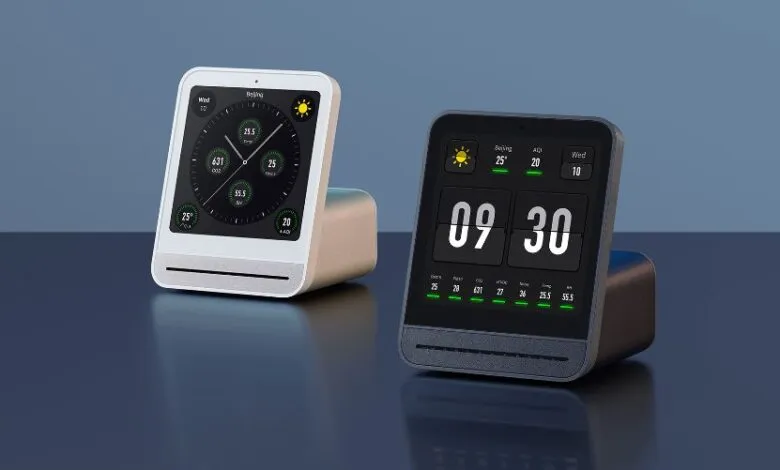
– The QingPing Air Quality Monitor 2 is an Android device with a touch screen and an MQTT interface designed for use with its official app and the Xiaomi ecosystem.
– Users can redirect the device’s data to a local MQTT server, either through an official method requiring a cloud account or via a DIY approach using ADB and file modifications.
– Enabling Android’s developer mode on the device allows access to debug settings, which permits connection via ADB to open a shell for further modifications.
– Through the ADB shell, users can stop the device’s apps, edit system files to redirect cloud server calls, and access SSH with root credentials.
– Modifying the device also requires setting up a proxy for weather data queries, which can be done using a simple MQTT server as demonstrated in the provided project files.
The QingPing Air Quality Monitor 2 is a versatile Android-based device that provides real-time air quality data through its touchscreen. While it’s designed to work with the official QingPing app and Xiaomi’s cloud ecosystem, its built-in MQTT interface offers a pathway for local control. Users can integrate the monitor with platforms like Home Assistant through an official method requiring a cloud account, or they can take a more direct, self-managed approach using ADB and file modifications.
Gaining access to the device begins by enabling Android’s developer mode. This is done by tapping the “Device Name” line in the Settings’ About section seven times. Once activated, you can enter the Developer Options menu to turn on both Debug Mode and Adbd Debugging. This step allows the device to be recognized when connected to a computer via its USB-C port, enabling communication through the Android Debug Bridge (ADB). With ADB active, you can open a shell session to interact with the device’s operating system directly.
From the ADB shell, the next steps involve stopping the default QingPing services. You can terminate the main QingSnow2 application and halt the watchdog.sh script that runs in the background. To redirect the device’s communication from the cloud to your local network, you’ll need to disable IPv6 and edit the `/etc/hosts` file. This modification points the device’s usual cloud server addresses to your own local server’s IP address. Interestingly, this process also appears to enable SSH access with root privileges, using the default password ‘rockchip’.
The core configuration for MQTT is located in the file `/data/etc/settings.ini`. This file is used by the QingPing application, so editing its contents allows you to redirect all MQTT traffic to your chosen local broker. It’s important to note that the device also contacts a remote server for local weather information. Therefore, a complete local setup requires providing an alternative source for this data. A common solution is to run a simple proxy or MQTT server that can supply the necessary weather updates, with example files and configurations available on related project pages.
(Source: Hackaday)