iOS 26.4 Adds New Liquid Glass Customization
▼ Summary
– iOS 26.4 introduces two new settings for customizing the Liquid Glass design: Reduce Bright Effects and an updated Reduce Motion.
– The new Reduce Bright Effects setting minimizes highlighting and flashing from interactive onscreen elements like buttons.
– The updated Reduce Motion feature more reliably reduces Liquid Glass animations for users sensitive to screen motion.
– Reduce Bright Effects can be found in Settings under Accessibility > Display & Text Size.
– Reduce Motion is located in Settings under Accessibility > Motion.
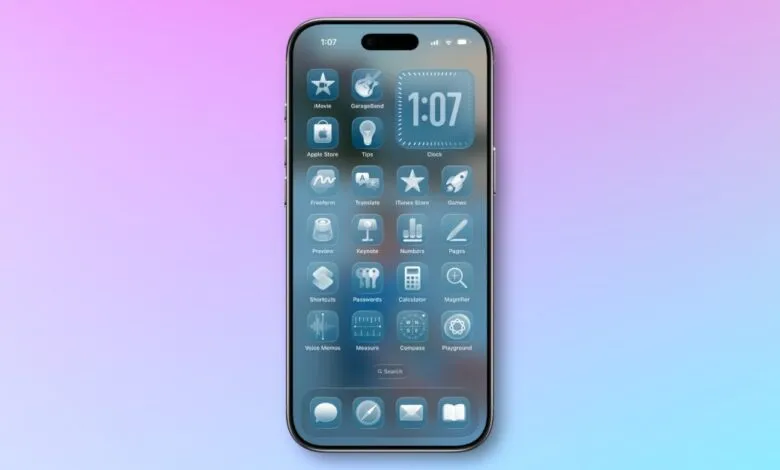
The upcoming release of iOS 26.4 introduces two significant enhancements for personalizing the Liquid Glass interface on iPhones. These updates provide users with greater control over visual effects, focusing on accessibility and user comfort.
A new setting called Reduce Bright Effects allows users to minimize the intensity of flashing and highlighting that occurs with certain interactive elements. According to Apple, this feature is designed to “minimize highlighting and flashing when interacting with onscreen elements, such as buttons or the keyboard.” Users can activate this option by navigating to Settings, then Accessibility, followed by Display & Text Size.
Meanwhile, the existing Reduce Motion feature has received a substantial update in this release. Apple states the improvement now “more reliably reduces the animations of Liquid Glass for users sensitive to screen motion.” This refinement should address issues some users experienced after updating to iOS 26. The updated toggle is located in Settings, under Accessibility, and then Motion.
While speculation suggests a more granular slider control for Liquid Glass could arrive with iOS 27, these incremental updates in iOS 26.4 demonstrate Apple’s ongoing commitment to refining its signature design language. The additions offer practical ways for users to tailor their visual experience, whether for accessibility reasons or personal preference.
(Source: 9to5Mac)