Customize Your Google Pixel 10 Lock Screen Widgets
▼ Summary
– Android’s historical advantage in customization is being challenged, as iPhones now offer features like superior themed icons and a preferred Focus Mode.
– Lock screen widgets, once removed from Android after 2014, are officially returning to Pixel devices with the Android 16 QPR2 update.
– To use this feature on a Pixel 10, users must install the Android 16 QPR2 software, which is now available as a stable release.
– Enabling and adding widgets is a two-step process involving activation in the Settings app and then managing them directly from the lock screen.
– The feature allows quick access to information like weather or sports scores without unlocking the device, though the interface currently lacks direct widget rearrangement.
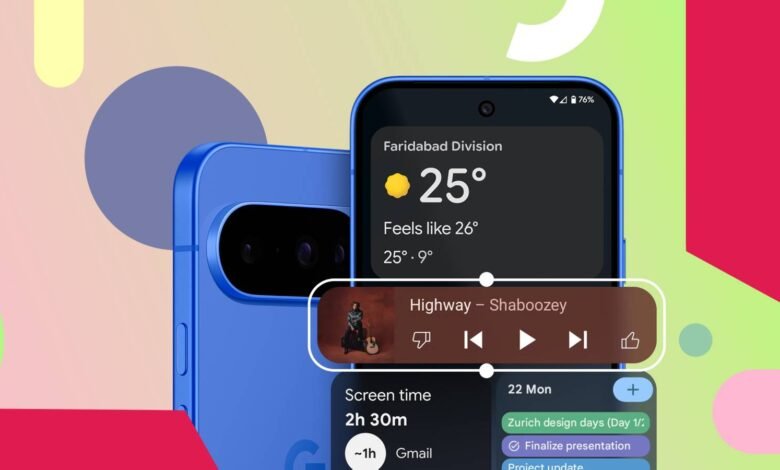
The ability to personalize your device has long been a defining strength of the Android experience. Interestingly, recent iOS developments have introduced a level of customization that sometimes surpasses stock Android, particularly in areas like themed icons and Focus Mode. One notable feature that has been absent on Android phones, yet available on iPhones, is the use of lock screen widgets. This functionality was actually part of Android years ago but was removed with the Android Lollipop release. The good news is that this highly useful feature is finally returning to Pixel devices, starting with the Google Pixel 10 series through the Android 16 QPR2 update.
Before you can begin placing widgets on your lock screen, you need to ensure your Pixel 10 is running the correct software. Lock screen widgets are not available on the standard stable version of Android 16. They are being reintroduced specifically with the Android 16 QPR2 update. This update was initially available only through a beta program but has now progressed to a stable public release. You simply need to install the latest software update on your device to gain access; enrolling in a beta is no longer necessary.
Once your Pixel 10 is updated to Android 16 QPR2 or a later version, adding widgets is a straightforward, two-part process. First, you must enable the feature within your phone’s settings.
Navigate to the Settings app, then select Display & touch. Under the Lock display section, tap on Lock screen. Here, you will find the toggle switch for Widgets on lock screen; make sure it is turned on.
With the feature enabled, lock your device. Wake the screen, but do not unlock it. Swipe left on the lock screen to enter a new area called Explore hub mode. You will need to authenticate using your fingerprint or other biometric method. Follow the prompts by tapping “Let’s go” and then “Got it” on the subsequent pop-up. Google provides a helpful warning that some information from widgets may be visible on the lock screen, so be cautious if a widget displays sensitive data.
By default, your phone will already show a few widgets, such as Gemini and Weather. To modify this setup, tap on any widget. You can then select Remove from the top of the screen or resize it just like you would on your home screen. To add a new widget, tap on an empty area and choose Add widget from the upper-left corner. This opens a familiar widget picker where you can browse featured options, use the search bar, or look through all available widgets under the Browse tab. Tap on your chosen widget and then select the Add button to place it.
You can add and resize multiple widgets, creating additional pages to the right of your main widget screen. A current limitation is that you cannot drag to rearrange widgets directly; the only method is to remove and re-add them in your preferred order. Despite this, the feature offers a convenient way to glance at crucial information, like sports scores, VPN status, or smart home controls, without needing to fully unlock your phone.
Having widgets readily accessible on the lock screen is a welcome return to form for Android. The functionality provides genuine convenience, even if the user interface could use some refinement. It’s a significant step in enhancing the Pixel user experience, joining other thoughtful UI tweaks that make these smartphones more powerful and personal tools.
(Source: Android Police)