One Registry Tweak Made My Windows PC Instantly Faster
▼ Summary
– Windows 11 can feel slow, particularly with menu delays, even on modern hardware.
– A specific registry edit can make legacy menus appear faster by reducing the default ‘MenuShowDelay’ value.
– This tweak only affects older UI elements like the classic context menu and Control Panel, not modern parts like the Start menu.
– Disabling visual effects and animations in the Accessibility settings can also improve the perceived responsiveness of the system.
– These changes improve the user experience by making the system feel snappier, but they do not actually increase hardware performance or benchmark scores.
Many Windows users experience a noticeable lag in their system’s responsiveness, particularly when interacting with menus and the interface. While hardware upgrades are one solution, a simple adjustment to a single registry setting can deliver an immediate and tangible improvement in how quickly your computer feels. This tweak addresses a deliberate design choice in Windows that introduces a delay, allowing you to reclaim a sense of instant feedback from your operating system.
The feeling that Windows 11 is sluggish even on capable hardware is a common complaint. Actions like right-clicking in File Explorer often come with a frustrating pause before the context menu appears. This isn’t necessarily a sign of an underpowered machine; it’s frequently a built-in software behavior. Modern systems, despite their superior components, can feel less responsive than older versions of Windows due to these intentional delays and visual effects.
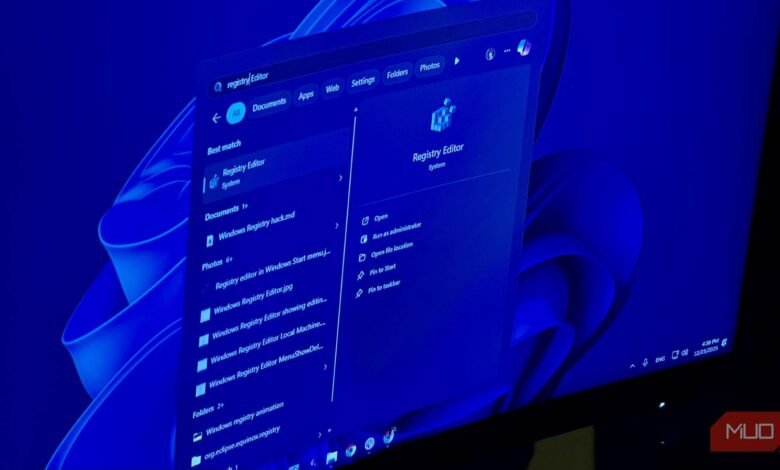
Fortunately, speeding up these menus is a straightforward process. The key lies in modifying a specific registry value. Open the Registry Editor by searching for it in the Start menu. Navigate to HKEYCURRENTUSER\Control Panel\Desktop. In the right-hand pane, locate the entry named MenuShowDelay. By default, this value is set to 400 milliseconds. Double-click it and change the number to something lower. Setting it to 0 milliseconds removes the delay entirely. After making this change, a system reboot is required for it to take full effect.
It is crucial to proceed with caution when editing the Windows Registry. Altering values incorrectly can cause software instability or system issues. Follow the instructions precisely and understand that you are making changes at your own risk. Always ensure you have backups of important data before modifying system settings.
This registry edit specifically targets legacy Win32-based menus. These are the parts of the interface that retain a classic look, such as the “Show more options” extended context menu, Control Panel windows, and certain file dialog boxes. It does not affect modern elements like the Start menu, which uses a different framework and design language. For users who have reverted to the classic right-click menu, this tweak is particularly effective.
To address the speed of the Start menu and other modern UI elements, a different setting is required. Head to Settings > Accessibility > Visual effects and toggle the option to turn off animations. This change applies system-wide and can make navigating the entire interface feel significantly snappier. The difference is often immediate, stripping away the visual flourishes that can mask responsiveness.
The goal of these adjustments isn’t to boost raw processing power or improve benchmark scores. Instead, they enhance the perceived performance of your PC by eliminating artificial pauses and unnecessary motion. The result is a computing experience that feels more direct and instantaneous, reminiscent of older Windows versions where clicks produced an immediate reaction. For many users, this subjective feeling of speed is just as valuable as any hardware upgrade.
(Source: MakeUseOf)


