Stop Your LG TV From Spying on You With This One Setting
▼ Summary
– LG’s Live Plus is a default TV feature that uses ACR to analyze on-screen content for personalized ads and recommendations.
– The author discovered this privacy-intrusive setting by accident and was relieved to find it easy to disable.
– To turn off Live Plus on an LG TV, navigate through Settings > General > System > Additional Settings and toggle it off.
– This practice is not unique to LG, as other brands like Samsung and Roku have similar ACR-based advertising settings.
– Users can disable these features on other brands through specific privacy or smart TV experience menus.
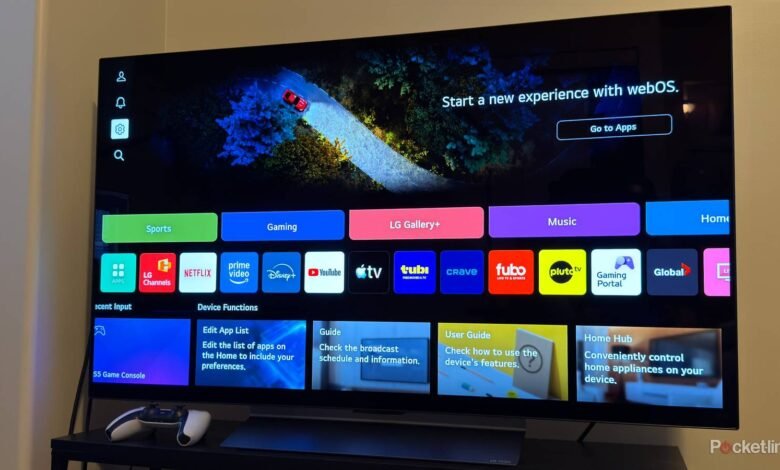
Getting the perfect picture on a new LG TV is a priority for most people, and the automatic device detection often makes that process incredibly simple. However, many users remain unaware of a default setting that monitors viewing habits to deliver targeted advertising. This feature, called Live Plus, uses automatic content recognition (ACR) to analyze what appears on your screen. The data collected is then used to personalize services, including content suggestions and ads. While this practice is common across the smart TV industry, you can easily reclaim your privacy with a few adjustments in the settings menu.
During initial setup, it’s easy to overlook deeper menu options when you’re focused on image quality. The discovery of Live Plus can be unsettling, as it operates in the background without explicit ongoing consent. The good news is that disabling this function is a straightforward process that immediately stops the data collection.
To turn off Live Plus on your LG television, follow these steps. Press the Settings button on your remote, typically depicted as a gear icon. From the side menu that appears, select the main ‘Settings’ option. Navigate to ‘General’, then scroll down to choose ‘System’. Inside that menu, select ‘Additional Settings’. Here, you will find the Live Plus toggle; simply switch it off. LG states that enabling this feature means you understand your viewing information can be used for an enhanced experience and personalized ads, making the decision to disable it a clear choice for privacy.
It’s important to recognize that this is not an issue unique to LG. Many smart TV manufacturers employ similar ACR technology. For instance, on Samsung models, you can opt out by going to Privacy Choices, selecting Terms and Conditions, and disabling both Viewing Information Services and Internet-Based Advertisement Services. Roku TV users can turn off ACR by finding the ‘Use info from TV inputs’ setting, located within the Smart TV Experience menu under settings. Taking these steps across different brands helps minimize unwanted data tracking.
The recent addition of the DirecTV live TV app to the LG webOS store and the automatic installation of Copilot via a software update highlight how these platforms are constantly evolving. While new features can add convenience, they also underscore the importance of regularly reviewing your television’s privacy settings. Proactively managing these options ensures you control what information is shared, allowing you to enjoy your entertainment without unseen oversight.
(Source: Pocket Lint)