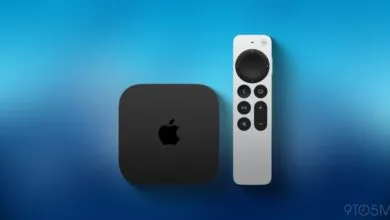
Control Your TV’s HDMI Inputs With the Apple TV Remote
▼ Summary
– Streaming devices like the Apple TV 4K offer many entertainment apps and can control TV power and volume, but they lack a built-in input switching function.
– While using a separate TV remote for input switching is manageable, consolidating remotes improves convenience.
– A hidden feature allows you to reprogram the Apple TV remote’s mute button to control your TV’s input selection instead.
– To set this up, you program the remote in Settings by using your TV remote’s input button when prompted to teach the mute function.
– Once configured, pressing the mute button cycles through TV inputs, and holding a selection switches the TV to that input.
Streaming devices have transformed home entertainment, offering vast libraries of content and simplifying control. The Apple TV 4K can be configured to manage your television’s power and volume, creating a more unified experience. However, one common frustration remains the need to juggle multiple remotes just to switch between HDMI inputs for a gaming console, cable box, or other devices. There is a clever workaround that repurposes a button on the Siri Remote, allowing you to cycle through your TV’s inputs directly.
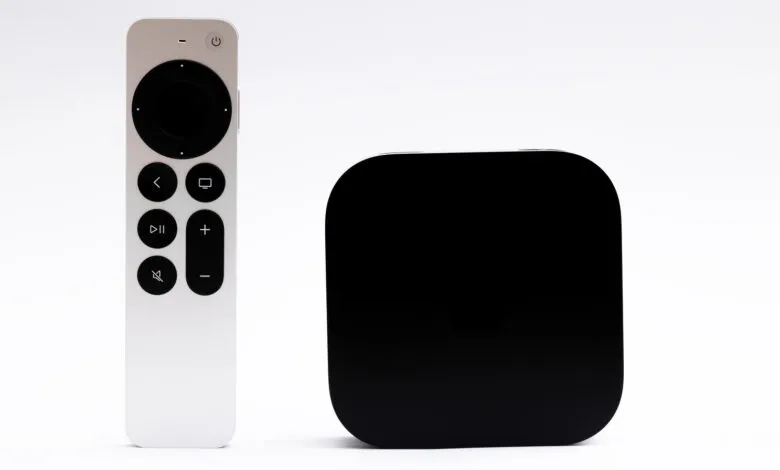
This method involves a simple reprogramming step within the Apple TV settings. The key is to sacrifice the remote’s dedicated mute function, reassigning that button press to trigger your television’s input selection menu. For many users, trading mute for seamless input switching is a worthwhile compromise that further reduces remote clutter.
Setting up this feature is a quick process. Begin by opening the Settings application on your Apple TV 4K. Navigate to Remotes and Devices, then select Volume Control. From there, choose the option labeled Learn New Device. You will be guided through a familiar setup wizard where you typically program the volume up and down commands using your standard television remote.
The crucial deviation comes when the system prompts you to program the mute button. Instead of pressing the mute key on your TV remote, press and hold the input or source button. This teaches the Apple TV to associate its own mute button command with your TV’s input switching function. Complete the remaining steps to finalize the setup.
Once configured, using the feature is straightforward. Pressing the mute button on your Siri Remote will no longer silence audio; instead, it will launch your television’s input selection dashboard on the screen. Each subsequent press of the button will cycle through the available HDMI ports and other sources. When you highlight the desired input, simply pause for a few seconds. The television will automatically switch to that source, completing the transition without ever needing to locate a different remote.
(Source: BGR)