Windows 11’s Latest Insider Preview: 12 New Features
▼ Summary
– Microsoft released multiple Windows 11 preview builds in early October 2025, including versions 24H2 and 25H2 across Canary, Dev, and Beta Insider channels.
– The Settings app AI agent now shows recommended actions for recent changes and provides more search results and contextual information.
– File Explorer and the Run command dialog received dark mode improvements, expanding to copy, move, delete dialogs, and progress indicators.
– A redesigned Start menu in the Canary Channel combines pinned and recommended apps into a scrollable interface with category grouping and removable sections.
– New features include enhanced Windows Hello support for external fingerprint sensors, updated Click to Do tools for Copilot+ PCs, and the ability to set user folder names during initial setup.
The first half of October 2025 has brought a wave of fresh updates for Windows Insiders, with Microsoft rolling out a dozen noteworthy features across its preview channels. These enhancements span everything from smarter AI integration and refined security options to visual refinements and productivity boosts, offering a glimpse into the operating system’s evolving direction.
Insiders in the Canary Channel received builds 27965 and 27959, while those in the Dev and Beta Channels got identical previews labeled builds 26220.6772, 26120.6772, 26220.6780, and 26120.6780. Some of these updates are tied to specific development versions like 24H2 and 25H2, while others represent ongoing refinements not linked to a particular release.
It’s important to remember that Microsoft typically rolls out features gradually across multiple flights, so not every Insider will see every change immediately. The following list covers the most significant improvements introduced during this period.
Settings App AI Agent Improvements Starting with builds 26220.6780 and 26100.6780, the Settings app now offers a more responsive AI agent. On the Home page, the Recommended settings card now displays AI-driven actions tied to recently changed settings. The search box also returns more relevant results depending on your query. If a setting can’t be adjusted further, the agent provides contextual information and possible next steps.
Drag Tray Now Supports Multiple Files Previously, dragging a single file to the top of the screen would open the Drag Tray for sharing with compatible apps. The latest update extends this functionality, allowing users to drag and drop multiple files at once.
Administrator Protection in Windows Security Although not entirely new, Administrator Protection has reappeared in the Windows Security app. This feature provides an additional layer of security oversight for system changes made by administrators.
Run Command Gets Dark Mode Support Microsoft continues its push for visual consistency with dark mode. Following update KB5067103, the Run command dialog now respects the system’s dark theme. This change is rolling out slowly and may take several releases before reaching all Insiders.
Click to Do Enhancements for Copilot+ PCs Builds 26220.6772 and 26100.6772 bring improvements to the Click to Do feature on Copilot+ PCs. Object selection within images is now more precise, speeding up tasks performed with the mouse. A new context menu appears when hovering over numbers and units in snapshots, offering instant conversions for length, area, volume, weight, temperature, and speed.
Windows Hello Supports External Fingerprint Sensors Windows Hello Enhanced Sign-in Security (ESS) now works with external fingerprint sensors, expanding beyond built-in biometric hardware. A new “Enhanced sign-in security” option appears on the Sign-in options page, letting users configure compatible external sensors for stronger authentication.
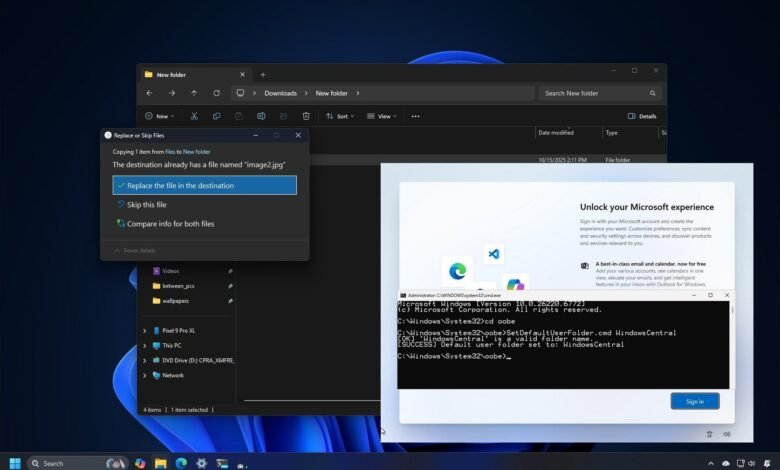
Custom User Folder Name During OOBE Advanced users can now set a custom user folder name during the Out-of-box Experience (OOBE). By pressing Shift + F10 at the Sign in page, opening Command Prompt, and running the SetDefaultUserFolder.cmd command followed by a name (up to 16 characters), the specified folder name will be used for account setup.
Microsoft has also disabled several known workarounds for bypassing the Microsoft account requirement during OOBE. The company states these methods sometimes skip essential setup screens, leaving devices improperly configured.
File Explorer Dark Mode Expands File Explorer’s dark mode now covers copy, move, and delete dialogs, along with progress bars, chart views, confirmation prompts, and error messages. This creates a more unified dark theme throughout the file management experience.
Start Menu Redesign in Canary Channel Build 27965 introduces a redesigned Start menu that merges the All apps, Pinned, and Recommended sections into a single scrollable interface. The menu automatically resizes based on screen dimensions, and apps in the All section are grouped by category. Users can now remove the Recommended section via Start settings, and the new layout eliminates previous layout options while adding a setting to show all pinned apps by default.
Built-in Edit Command Tool Also included in build 27965 is a new Edit tool, a simple text editor accessible directly from Command Prompt. This lets users create or modify text files without switching to another application like Notepad.
Adjustable On-Screen Indicator Position Build 27959 adds a “Position of on-screen indicators” setting, allowing users to reposition hardware indicators, such as volume and brightness controls, to Bottom center, Top center, or Top left.
New Keyboard Shortcuts for Dashes New keyboard shortcuts simplify inserting dashes: press Windows key + Minus for an En dash (–) and Windows key + Shift + Minus for an Em dash (, ).
Windows Share Now Supports App Pinning The Windows Share interface in build 27959 includes a pin option, letting users keep favorite apps readily accessible under the Share using section.
With twelve new features arriving in just two weeks, Windows 11 Insiders have a wealth of enhancements to test. From quality-of-life refinements to more substantial shifts in functionality, these updates highlight Microsoft’s current focus areas. While not every preview feature will reach the public, they provide valuable insight into the future of the operating system. Insiders are encouraged to share feedback, as user input often influences which experimental features become permanent additions.
(Source: Windows Central)