Windows 11 October 2025 Update: 9 Exciting New Features
▼ Summary
– Microsoft’s October 2025 Windows 11 update introduces AI actions in File Explorer, enabling image editing and search features via a context menu.
– A new Administrator Protection security feature enhances elevation requests by using isolated temporary accounts instead of user tokens.
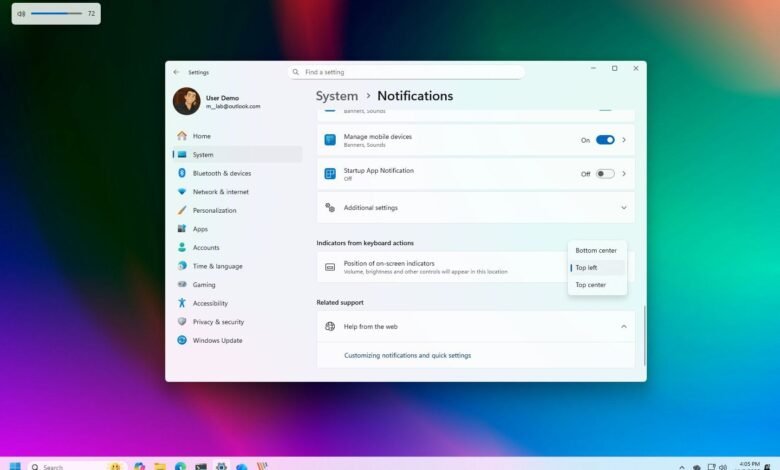
– The update allows relocating on-screen hardware indicators and adds a new Advanced settings page to replace the For Developers section.
– Third-party passkey provider support is included, starting with 1Password integration for secure app and website sign-ins using Windows Hello.
– Several legacy Control Panel features are moved to Settings, including date/time format options and additional clock displays.
Microsoft’s anticipated October 2025 update for Windows 11 brings a suite of enhancements designed to improve productivity, security, and accessibility. This release, expected to roll out on October 14, delivers new AI integrations, visual refinements, and advanced security tools, alongside continued migration of legacy Control Panel functions into the modern Settings interface. Both Windows 11 versions 24H2 and 25H2 will receive these updates simultaneously.
A standout addition is the option to relocate desktop hardware indicators. Users can now adjust where volume, brightness, and airplane mode notifications appear on screen. This setting, labeled “Position of on-screen indicators,” is found under Settings > System > Notifications, offering placement choices like bottom center, top left, and top center.
File Explorer gains new AI-powered contextual actions through a dedicated submenu. When right-clicking supported image files, options include Bing Visual Search for reverse image lookup, Blur Background via the Photos app, object removal with Generative Erase, and background elimination using Paint. Microsoft 365 subscribers also get a “Summarize action in Copilot” for OneDrive and SharePoint files.
The Windows Share interface receives a practical upgrade, allowing users to pin frequently used applications for quicker access. This small but useful change streamlines file sharing across different apps and services.
Settings now hosts a redesigned “Advanced” page, which replaces the older “For Developers” section. It organizes options into clear categories such as Taskbar, File Explorer, and Virtual Workspace, and introduces a dedicated area for version control configuration.
Administrator Protection introduces a robust new security layer, differing from traditional User Account Control. Instead of using pre-existing user tokens, it creates a temporary, isolated system account to handle elevation requests for unsigned applications, reducing potential attack vectors. This feature can be activated through Windows Security followed by a system restart.
Passkey management expands with support for third-party providers like 1Password. Users can now select their preferred service for creating, saving, and using passkeys, integrating them with Windows Hello for secure, password-free sign-ins.
Several legacy features from Control Panel have moved to Settings. Users can now configure additional clocks in the system tray, customize date and time formats, including AM/PM symbols, select time servers, and enable UTF-8 support for global language compatibility directly within the modern Settings app.
A new Braille viewer enhances Narrator’s accessibility, displaying Braille output on-screen for educational purposes. Setup requires a one-time package download, and the feature is accessible through specific keyboard shortcuts.
Finally, the Click to Do menu highlights new and popular AI actions, and the “Summarize” function now produces more concise and targeted summaries. These updates reflect Microsoft’s ongoing effort to refine the user experience with smarter, more secure, and highly customizable tools.
(Source: Windows Central)