Fix Blurry iPhone Text Photos in 3 Steps
▼ Summary
– The author uses an iPhone for travel photography due to its portability, ease of use, and ability to take pictures discreetly on flights.
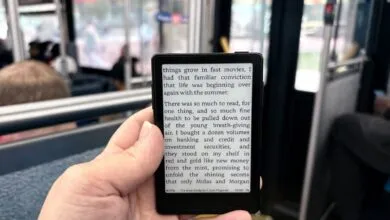
– A specific problem is that the iPhone camera consistently produces blurry pictures of text, such as menus, despite overall camera improvements.
– This issue has persisted across recent iPhone models, including the 16 Pro Max and 17 Pro Max, and was less severe on older phones.
– The author has tried solutions like taking pictures from further away and cropping, but the text quality remains poor.
– The problem is frustrating because capturing clear text is a frequent need for their work, and practical alternatives like scanners are not viable.
For travel bloggers and reviewers, capturing sharp images of text-heavy documents like menus and wine lists is a surprisingly common challenge. While modern smartphone cameras excel in many areas, they can struggle with this specific task, leaving users with frustratingly blurry results. This issue isn’t isolated to one device, it appears to be a persistent quirk with recent iPhone models, where advanced computational photography can sometimes misfire on flat, text-filled surfaces.
The core of the problem often lies in autofocus and processing algorithms. High-resolution sensors and sophisticated software are designed for complex three-dimensional scenes. When pointed at a flat page, the system can have difficulty deciding where to focus precisely, leading to soft or inconsistent text clarity. This can be especially pronounced in lower light, common in airplane cabins or dimly lit restaurants. The solution isn’t necessarily a new camera, but a shift in technique.
A highly effective, three-step method can dramatically improve your results. First, ensure you have ample, even lighting. Use your phone’s flashlight or position the document under a light source to eliminate shadows and provide a high-contrast target for the camera. Second, increase your shooting distance. Instead of holding the phone close to the menu, step back to give the autofocus system a better chance to lock on. Finally, leverage the power of cropping. After taking a well-lit, distanced shot, use your phone’s native editing tools to crop in on the text. This combination often yields a sharper image than trying to photograph the text up close.
It’s worth noting that many airlines and hotels now publish digital menus online, which is the ideal solution when available. A simple screenshot guarantees perfect clarity. For physical documents, however, mastering this simple three-step process,better lighting, increased distance, and strategic cropping,can resolve the blurry text dilemma. This approach leverages your existing device’s capabilities without needing extra gear, allowing you to capture clean, readable images quickly and discreetly, exactly what’s needed when reviewing on the go.
(Source: One Mile at a Time)